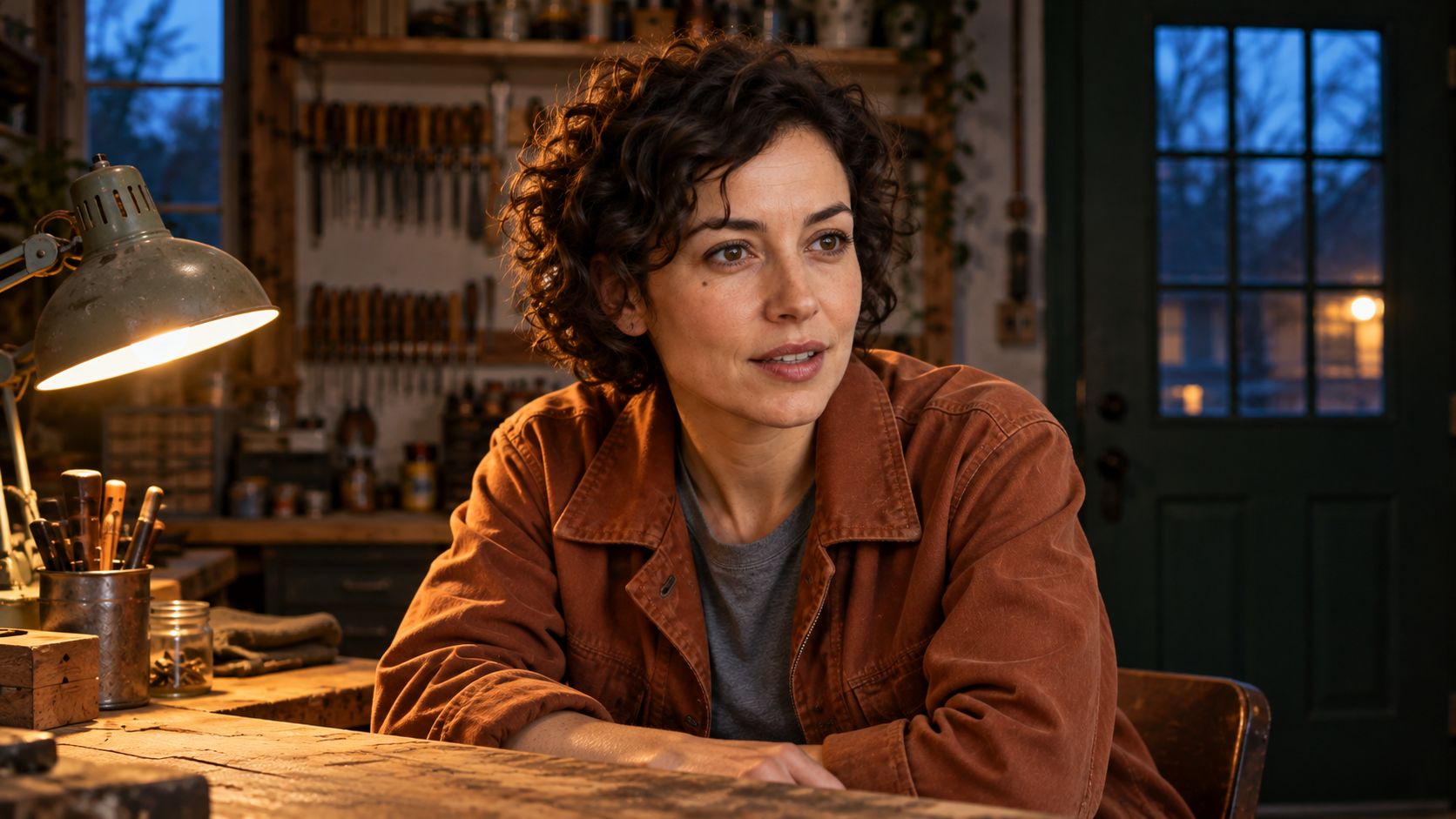
Reference images are ready. Video generation and the interface walkthrough are still pending; this draft does not report a completed test.
A recurring character needs a recognizable voice as well as a recognizable face. This guide uses Vidu Q4 Preview in Arcloop to build a 12 second drama scene from a character image, a location image, and a voice recording. You will prepare the references, write the dialogue prompt, and reuse the voice sample for a second clip with new lines.
The scene takes place in a small repair shop after closing. A woman looks toward the door, recognizes someone, and lets her guarded expression soften. Two short lines carry the moment. The familiar setting leaves room to judge the performance.
What the voice reference contributes
Vidu Q4 supports voice references alongside visual references. The recording supplies a voice example; the video prompt supplies the new dialogue and scene direction. Treat matching voice, accurate words, readable mouth movement, and believable acting as four separate review questions. A result can succeed at one and miss another.
This makes the workflow useful for a character returning in another episode, a close reaction after an unseen conversation, or a quiet spoken introduction. Start with one speaker so you can hear which instructions the model follows.
How to Make a Dialogue Scene with Vidu Q4 in Arcloop
Step 1. Write a scene that fits the dialogue
Decide what changes emotionally before adding camera instructions. Here, the character starts uncertain and ends relieved. She stays seated, keeps her gaze toward the doorway, and speaks without a large gesture.
| Time | Picture and action | Speech and sound |
|---|---|---|
| 0 to 3 seconds | She hears someone arrive and looks toward the door. | A soft door chime and quiet room tone. |
| 3 to 6 seconds | Recognition interrupts her guarded expression. | You came back. |
| 6 to 8 seconds | She pauses and takes a small breath. | Room tone continues. |
| 8 to 11 seconds | Her shoulders ease as she keeps looking toward the visitor. | I kept the light on. |
| 11 to 12 seconds | Hold the reaction. | Let the last word settle. |
These time windows describe the intended rhythm. Review the generated timing before deciding whether the pause reads naturally.
Step 2. Prepare the character, shop, and voice references
Use a clear character image with the face large enough to inspect. A neutral portrait gives you a useful baseline for checking the hair, face, and jacket when the character turns.
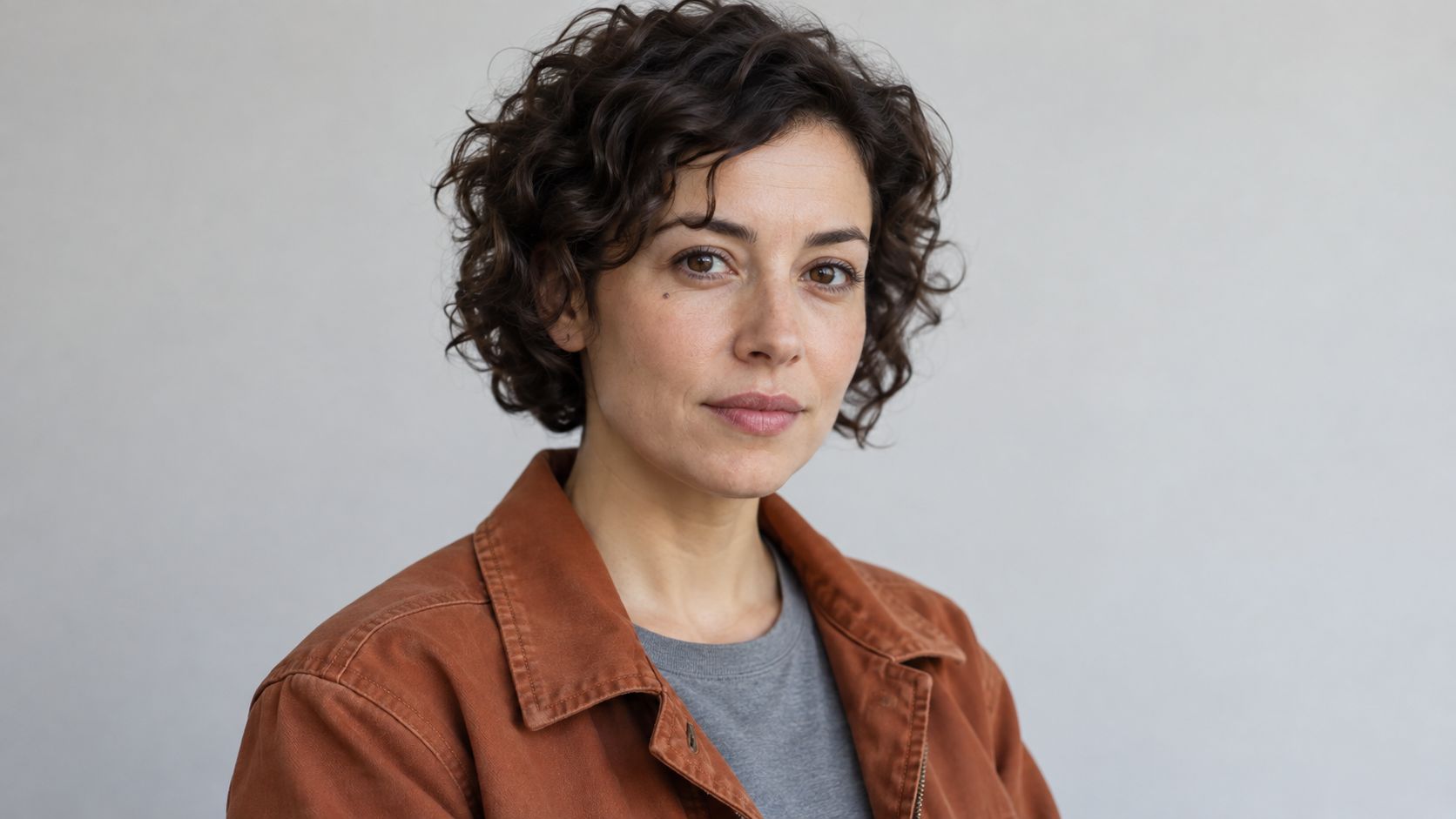
Character reference prepared with the built in image generation tool outside Arcloop. It supplies the face, hair, and clothing for the dialogue scene.
Character image prompt
Create one photorealistic casting reference photograph of an original adult woman in her early thirties. Short dark curls, brown eyes, a narrow oval face, a small natural freckle below her left eye, rust colored canvas work jacket over a plain gray cotton shirt. Chest up framing, body turned slightly to the right, both eyes visible, relaxed mouth, neutral attentive expression. Soft daylight on a plain pale gray background. Natural skin texture, realistic hair and fabric, no beauty filter. One person, no text, no logos, no collage, no illustration or animation.
The location reference establishes the workbench, doorway, and lighting. Keep people out of this image so it cannot introduce a second face.
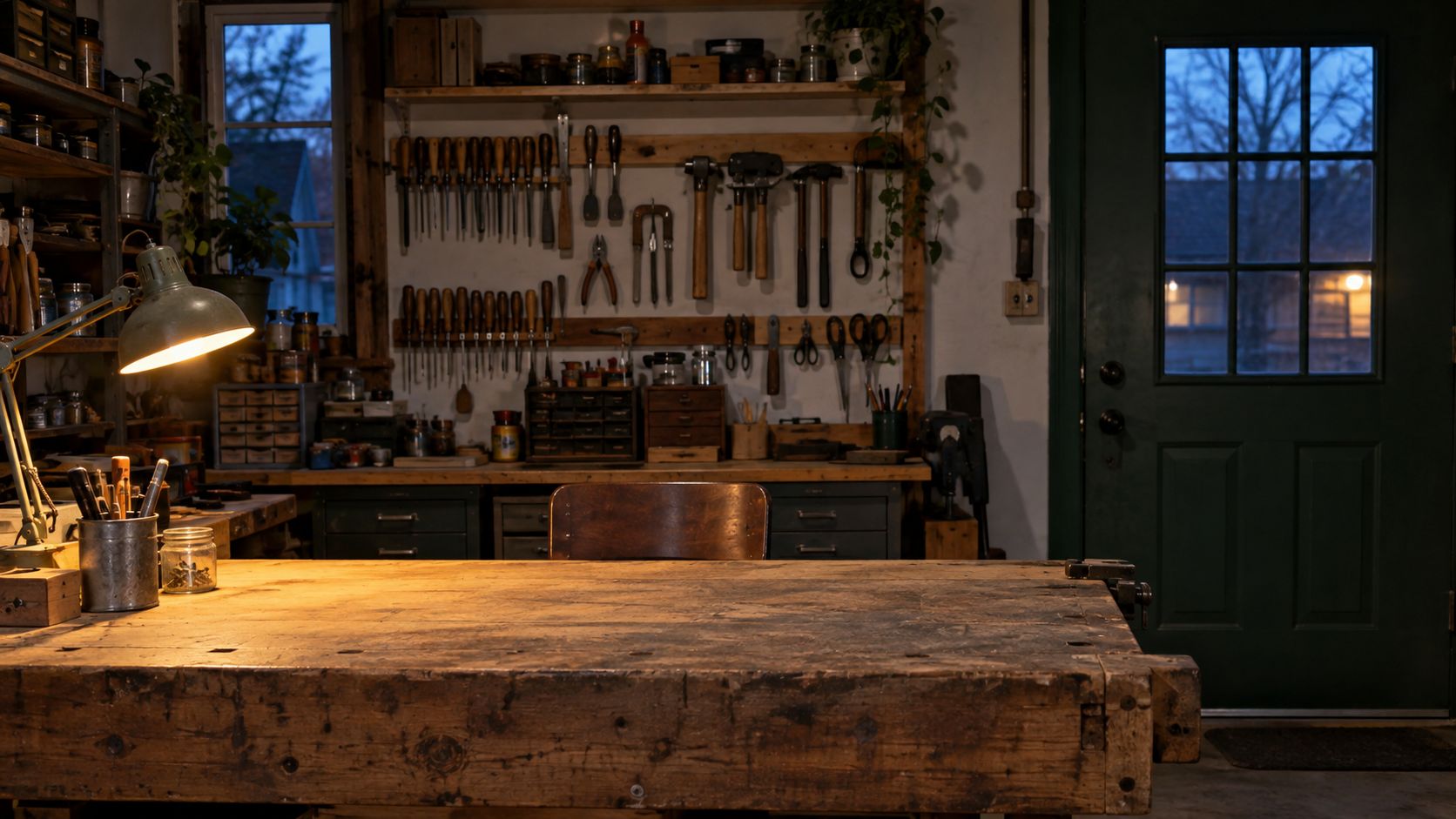
Location reference prepared with the same external tool. The empty seat leaves space for the character, and the doorway gives her a clear direction to look.
Shop image prompt
Create one photorealistic location photograph of a small independent repair shop after closing. A worn wooden workbench in the foreground, a dark green entrance door in the right background, neatly hung hand tools on the rear wall, one warm desk lamp on the left, cool evening light through a narrow window. Leave a clear seated position behind the workbench with an unobstructed view toward the door. Eye level medium wide composition, realistic scale and practical lighting. No people, no readable text, no brand marks, no illustration or animation.
For the voice, use a recording you made or a synthetic voice you have permission to use. Choose a clean example of natural speech without music or another speaker. A short, clearly spoken sentence is easier to compare than a dramatic recording with several different delivery styles.
Prepare an MP3 recording between 3 and 12 seconds long, as required by Vidu's reference to video API. For this example, aim for 5 to 8 seconds of natural speech and check the exported duration. Arcloop's upload controls may apply additional requirements; check them before submitting.
Suggested voice sample script
I left a seat for you. Take your time.
Use a different sentence from the final dialogue. That lets you check whether the generated scene carries the voice into new words rather than simply repeating the sample. Keep the same recording for later takes.
Step 3. Attach the references and write the full prompt
Open Arcloop and attach the two images and voice sample to your video request. Give each asset a clear name. The bracketed labels below are placeholders: replace them with the asset names or reference mentions shown in your request.
Complete video prompt
Create one 12 second photorealistic drama scene in a real repair shop after closing.

Use [CHARACTER IMAGE] for the woman's identity, short dark curls, face, freckle, rust colored jacket, and gray shirt. Use [SHOP IMAGE] for the workbench, dark green doorway, tool wall, and practical lighting. Use [VOICE AUDIO] as the voice reference for this woman speaking the new dialogue below. The recording is a voice example, not a request to repeat its words.

One adult woman is seated behind the workbench. An unseen visitor has just arrived at the doorway to camera right. Keep her gaze toward that doorway, slightly past the camera. Begin in a medium close view at her eye level. Make one slow, subtle camera push toward her face throughout the scene. Keep her face and mouth unobstructed.

0 to 3 seconds: A soft door chime sounds. She raises her eyes toward the doorway, attentive but guarded. Her hands remain still below the frame.

3 to 6 seconds: Recognition softens her expression. She says the following line once, in natural conversational English:
You came back.

6 to 8 seconds: She pauses. A small breath and a slight release in her jaw show relief. Leave the pause quiet.

8 to 11 seconds: Her shoulders ease. Still looking toward the visitor, she says the following line once:
I kept the light on.

11 to 12 seconds: Hold on her quiet reaction as the last word settles.

Use warm light from the desk lamp and soft cool evening light from the window. Natural skin texture, restrained facial movement, realistic breathing, gentle focus falloff. Keep the character, clothes, shop layout, and lighting consistent. Generate the spoken dialogue, soft chime, and quiet room tone. No music, narration, subtitles, additional speakers, extra dialogue, sudden cuts, illustration, or animation.
The prompt gives the voice, images, and dialogue different jobs. Keep that structure when adapting the scene. Replace the character, setting, and words, then adjust the pause to fit the performance you want.
Step 4. Generate the scene, then give the character new lines
Select Vidu Q4 Preview and reference to video. For this example, use 12 seconds, 720p, 16:9, and generated audio enabled. Confirm that both images and the voice sample belong to the task before starting.
Arcloop's Vidu Q4 model guide lists image input as required. Audio references are available in reference to video, with up to three supported. Check the displayed credit estimate for your settings.
The time ranges in the prompt describe the intended performance, not frame accurate controls. Review the actual timing, words, and mouth movement in each output.
Make a second request with the same images, voice sample, duration, and audio setting. In the full prompt, replace only the two spoken lines with these:
Line at 3 to 6 seconds:
I almost locked the door.

Line at 8 to 11 seconds:
Come in. It's cold out.
Listen across both clips. Does the character still sound like the same speaker when the words change? Compare accent and vocal texture while allowing natural differences in emphasis. This small comparison checks your scene; it does not establish a model wide success rate.
If you also want to hear what the reference contributes, make an optional third version of the original dialogue without the voice attachment. Remove the voice reference sentence from that prompt and keep generated audio enabled. Budget for that extra request separately.
Step 5. Review the words, voice, mouth, and reaction
Listen with headphones before judging the picture. Check whether both lines are complete, whether the model adds words, and whether the pause remains audible. Then compare the generated voice with the reference. Listen to how consonants land, the voice's texture, and its accent. A similar pitch alone does not establish a convincing match.
Watch the mouth at normal speed. Look for speech starting before the lips move, a mouth continuing after the line ends, or an expression that becomes exaggerated during the pause. Check the face and jacket against the character image at the opening and closing frames.
If a line is rushed, shorten it or give it more time. If the voice is unclear, replace a noisy sample before rewriting the scene. If the performance feels stiff, simplify the emotional direction to one visible change. Adjust one part, then compare the next take with the previous one.
Frequently Asked Questions
Do I need to write code or use a separate lip sync tool?
This workflow uses image and audio attachments, a text prompt, and video settings in Arcloop. It asks Vidu Q4 Preview to generate speech and picture together. Review the mouth movement in the result before deciding whether any further editing is needed.
Can I upload only a voice recording?
The Arcloop integration requires an image. For this scene, the portrait establishes the speaker and the shop image establishes the location. A voice recording supplements those visual inputs.
Does one voice reference guarantee the same voice in every episode?
No. Reuse the same sample, character reference, and speaker assignment, then compare each new clip. Different dialogue and emotional direction can change the delivery.
How much will the comparison cost?
The two dialogue clips require two generation requests. The optional version without a voice sample adds a third. Budget for each attempt separately, plus image or voice preparation. Check the Arcloop estimate before confirming each task because settings and retries affect the total.