The problem
The script reads fine, but the generated video is a mess: a close-up on a face when the scene called for the contract, an empty establishing shot where a reaction shot should be, blocking that jumps left and right between two lines of dialogue. Worse, characters change appearance every time the shot changes — usually because no one built them as character assets referenced with @ in every shot, and blocking and camera position never made it into the Shot description in the first place. The prompt gets messier with every edit, and you end up burning generations trying to get lucky.
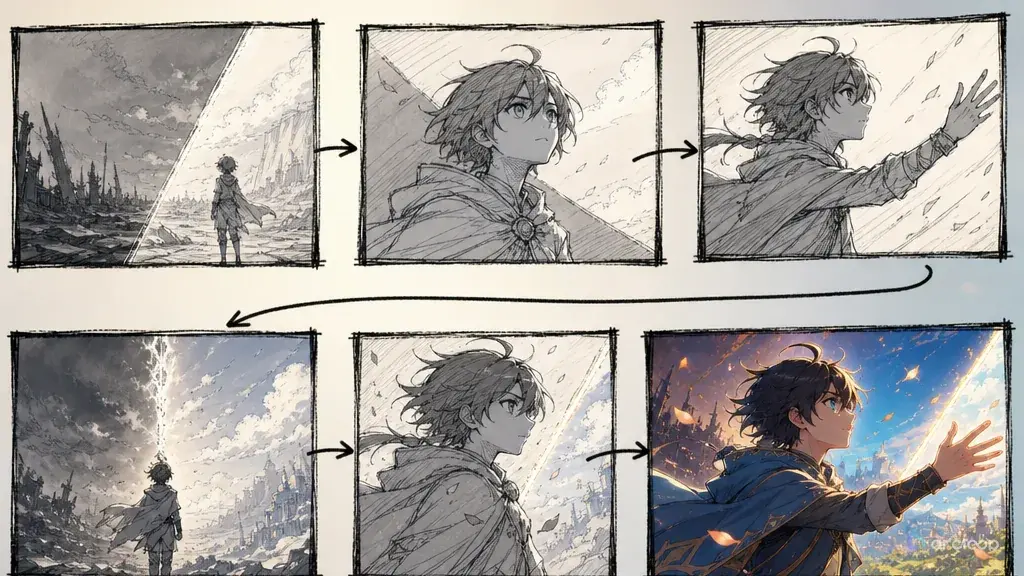
The value of an AI storyboard and a scene-by-scene shot list is translating a script into production language before you generate anything. Break down shots in the creative workspace, use the AI short drama guide for structure, and lock characters with the character asset guide. That way, your first-3-second hook, 15-second pacing, cover-image candidates, and episode-to-episode continuity aren't things you're bolting on after the edit is done.
How it works
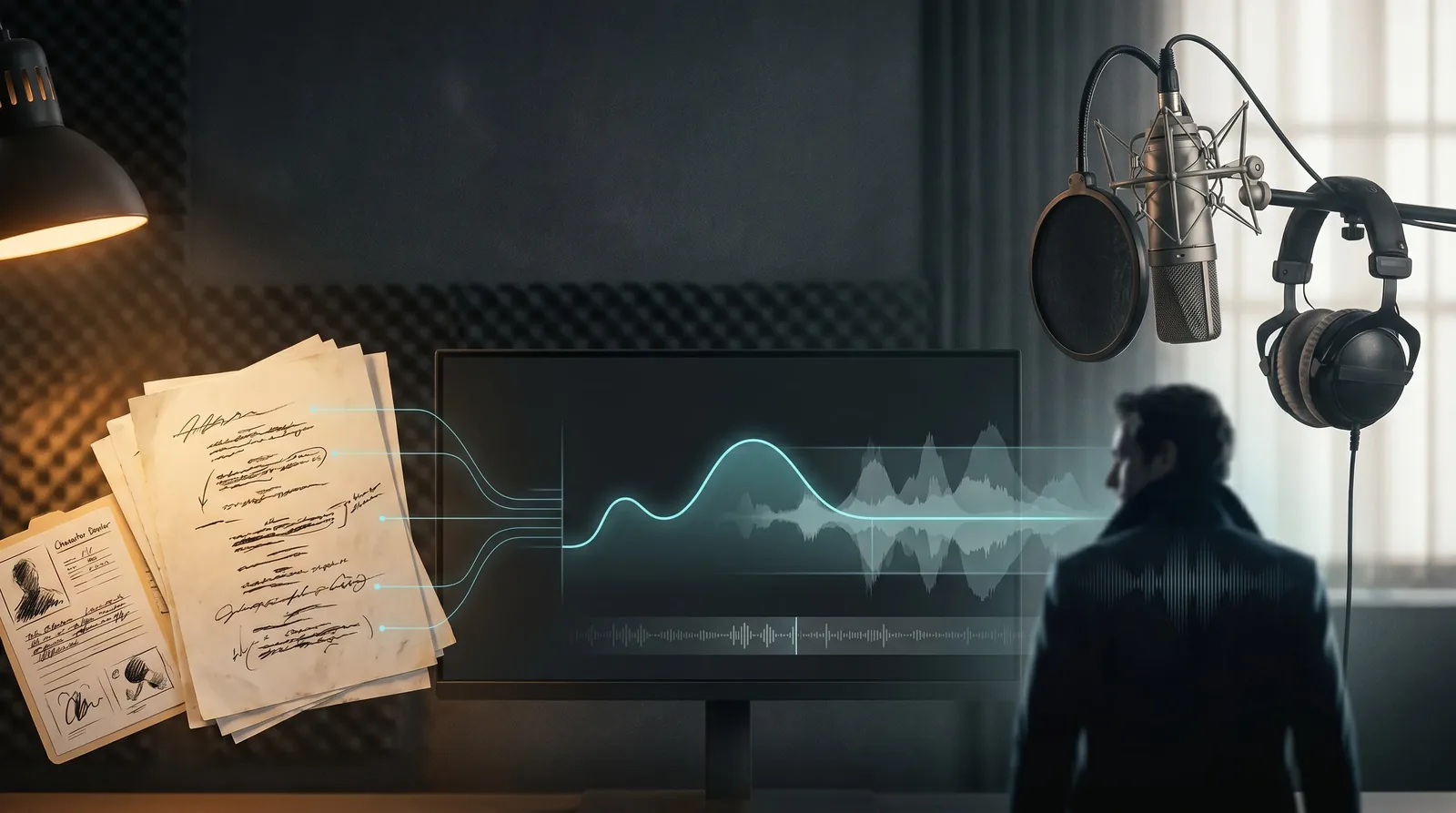
A script is narrative text. A storyboard is production text. A script says "she discovers the truth." A storyboard says "lead front-right, holding a voice recorder, camera pushes in from the recorder to her smirk." The first gives you story direction; only the second actually generates video.
A scene-by-scene shot list needs, at minimum: scene number, shot number, duration, shot size, characters, blocking, action, dialogue, emotion, lighting, character asset reference, voiceover requirements, edit point, and monetization use. Monetization use covers things like cover-image candidates, title lines, cliffhanger points, and reusable clips.
The full pipeline is still: concept → script → storyboard → video → voiceover → edit. An AI storyboard sits between script and video, and it's the layer that stops characters from recasting themselves every frame, blocking from turning to chaos, and the edit from dragging. Where characters are involved, a storyboard needs to understand how a character asset, a character asset (Reference images), an Reference images, a character asset, and a My Assets build on each other: the profile gives identity, the turnaround covers front/side/back, the four-view adds three-quarter angles and turns, the reference sheet compiles everything onto one page for review, and the My Assets is what gets called on long-term. You can break down a script with a storyboard template, generate shots with the AI short drama guide, and lock characters with the character asset guide.
How to build a production-ready shot list
Step one: write a one-line action goal for every scene. Don't write "complicated emotions" — write "the lead pulls out evidence and fights back." A clear action goal keeps the storyboard from sprawling.
Step two: decide how many shots. A short drama scene usually runs 3 to 6 shots: hook, pressure, evidence, reaction, twist, cliffhanger. Each shot carries exactly one piece of information. There's also a well-known 15-second rule of thumb to plan around: the first information loop needs to close within 15 seconds, and there needs to be a second pressure point by 30 seconds. Don't force a scene longer than 30 seconds into one continuous block — break it into 15-second groups, each with its own connecting shot and character asset references.
Step three: write the blocking. Character position should serve the relationship — whoever's pressing for answers stands forward, whoever's being questioned stands back; whoever holds the evidence can be closer to camera; whoever's hiding something can be half in frame.
Step four: bind character assets. Every shot should reference a asset reference (@name), a Main image, and the character asset (Reference images). Think of the My Assets as a filing cabinet you can call on: appearance, color palette, props, voice, and do-not-change items go in once, and the shot list only references the code and what happens in that shot. Don't reinvent the character inside the shot list.
Step five: write the voiceover requirements. A line isn't just text — it needs pace, pauses, emotion, and voice. Multi-character dialogue especially needs to mark who interrupts whom first.
Step six: write the edit points. Every shot needs to know what it cuts to next — a glance cuts to evidence, evidence cuts to a reaction, a reaction cuts to a twist. Without clear edit points, the finished cut feels like a pile of disconnected clips.
Step seven: add monetization fields. Mark cover-image candidates, title lines, cliffhanger points, and reusable clips. An AI storyboard isn't just for generation — it's what keeps costs under control when you're producing at volume.
Step eight: set a pass bar for the storyboard. A shot list that's ready for video generation should let someone else understand exactly what a shot needs to show without reading the original script. If the shot list still says things like "the lead breaks down" or "tense atmosphere," it hasn't hit production standard yet. This matters even more on commercial projects — the clearer the shot list, the less time you spend explaining things to outsourced editors, batch generation, and post-mortems.
Here is how that flow actually looks inside ArcLoop, step by step.
Open your IP Project and go to My Assets. Create a Character asset for each person who appears in more than one shot. Upload your reference images to the Library, then Bind the clearest full-body image as the Main image and any alternate angles or costume variants as Reference images. Do the same for recurring Scenes and Props.
Once your assets are ready, open the Episode and click Generate Shots. ArcLoop breaks the episode into shot cards. In each card, type @ followed by the character or scene name to pull in the asset — you do not need to describe hair colour, costume, or face again. Write only what is new in this shot: the action, the camera position, the lighting, and the emotion.
When the shot cards look right, generate images first to confirm framing and character design before committing to video. Then use the AI Chat Panel to generate videos in bulk: type Generate videos for Shots 1, 2, and 3. or Generate all shot videos for this episode. Finally, bring the clips into Edit, arrange them on the timeline, trim, and replace any shot that needs a second pass without touching the rest.
Copy-and-use prompt examples
Example 1: turning a script into a storyboard
I'm working on Episode 1 of my AI short drama. The scene: @Jin Seo-yeon confronts @Park Hae-in in the office lobby at night. She pulls out a printed contract and demands an answer. He stays silent, then steps closer. Set up this scene as a shot-by-shot breakdown inside my Storyboard. Each shot card should have one action only. Reference @Jin Seo-yeon and @Park Hae-in from My Assets. Start with a wide establishing shot of @Office Lobby — Night, then move to a medium close-up on the contract, then a reaction on his face. Camera stays handheld throughout. Cold fluorescent overhead light. Flag Shot 1 as a cover-image candidate.
Example 2: a multi-panel storyboard spec
Generate an 8-shot Storyboard spec for Episode 1. Aspect ratio: 9:16 vertical. Each shot card must include: frame description, character blocking, camera movement, expression, dialogue line, lighting note, and which assets to reference with @. Pull @Liora Venn and @Marcus Dray from My Assets — do not re-describe their appearance inside the shot cards. Shots 1–2 form the 3-second hook: @Liora Venn alone in @Rooftop Scene, receiving a message. Shots 3–6 escalate the confrontation. Shots 7–8 deliver the twist and cliffhanger. Each shot carries exactly one piece of information. No blocking jumps between consecutive shots.
Example 3: storyboard review prompt
Review these shot cards before I generate videos. For each shot check: is there exactly one action goal; is the asset reference (@character or @scene) present and unambiguous; is blocking stated — who stands where relative to camera; is lighting consistent with the previous shot; is the dialogue line usable for voiceover without re-recording; is the edit point named (cuts to what). List what passes, what needs a small fix, and flag anything likely to cause character appearance drift, lip-sync mismatch, or pacing drag once video generation runs.
Common failures and fixes
Failure one: the storyboard describes the image but not the action. Fix: write "who does what" for every panel instead of just the mood.
Failure two: cramming too much into one shot. Fix: split the shot. AI video handles short, single actions much better than multiple beats of performance at once.
Failure three: forgetting blocking entirely. Fix: make blocking a required field. Without it, any shot with more than one character tends to turn into visual chaos.
Failure four: the storyboard doesn't connect to voiceover. Fix: add dialogue, pauses, and emotion to the shot list. Voiceover shouldn't be something you patch in after editing.
Failure five: no monetization fields. Fix: mark cover-image, title, cliffhanger, and reuse potential for every scene. Otherwise, the storyboard only serves a single sample clip instead of ongoing production.
Failure six: treating the storyboard as a one-off document. Fix: pull recurring shots out into templates — an evidence close-up, a confrontational turn, a silent stare-down, eavesdropping outside a door, a phone notification popping up. The more stable your templates, the easier your next batch of AI short dramas is to produce at scale.
FAQ
Does an AI storyboard have to be generated as images?
No. A scene-by-scene shot list can drive production on its own. Image storyboards are worth it for complex blocking and action; a text shot list is faster for high-volume work.
How many shots should one episode have?
It depends on length and how dense the conflict is. A 60-second vertical AI short drama typically runs 8 to 16 shots. The rule of thumb: one piece of information per shot.
Does storyboarding slow down one-click video generation?
It's one more step up front and far less rework later. For anyone producing at volume, a storyboard cuts costs — it doesn't add them.