

Arcloop is an all-in-one content creation workspace for cinematic video storytelling and animation.
Start with a rough idea, script, or character. From there, you can build the story, create characters, plan shots, generate video clips, and keep characters, scenes, and style consistent across the project.
It works well for short films, AI animation, serialized dramas, and other story-driven videos.
This guide will take you from an empty workspace to your first generated scene.
1. Create Your Account
Head to the Homepage and sign up with your email.
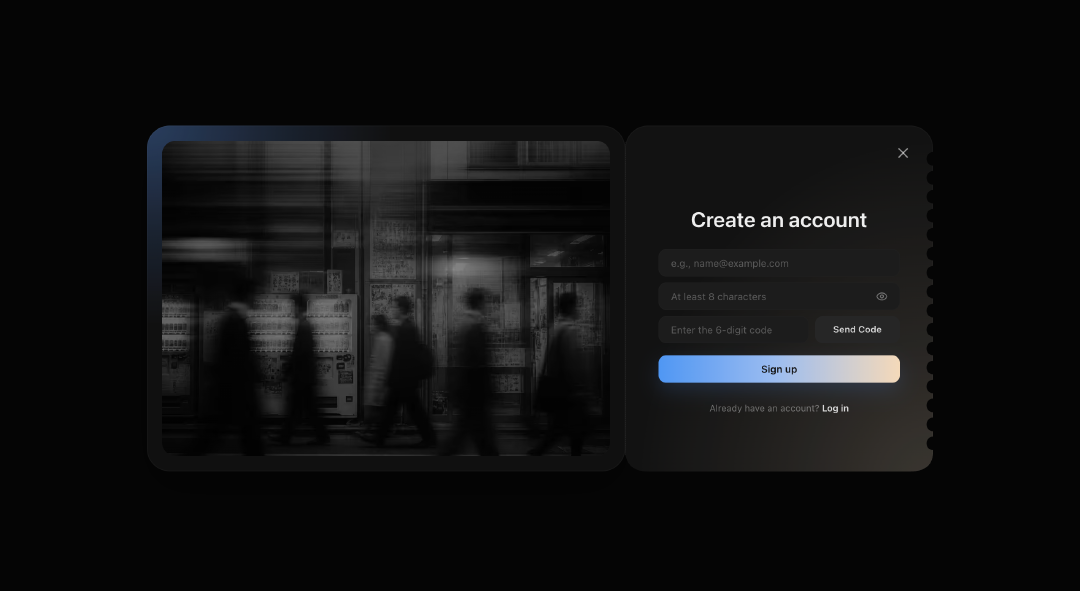
After signing in, you will land in your workspace. This is where you can start a new project or jump back into anything you have already created.
Claim Your Starter Credits
New users can redeem a discount code for 3,000 bonus credits.
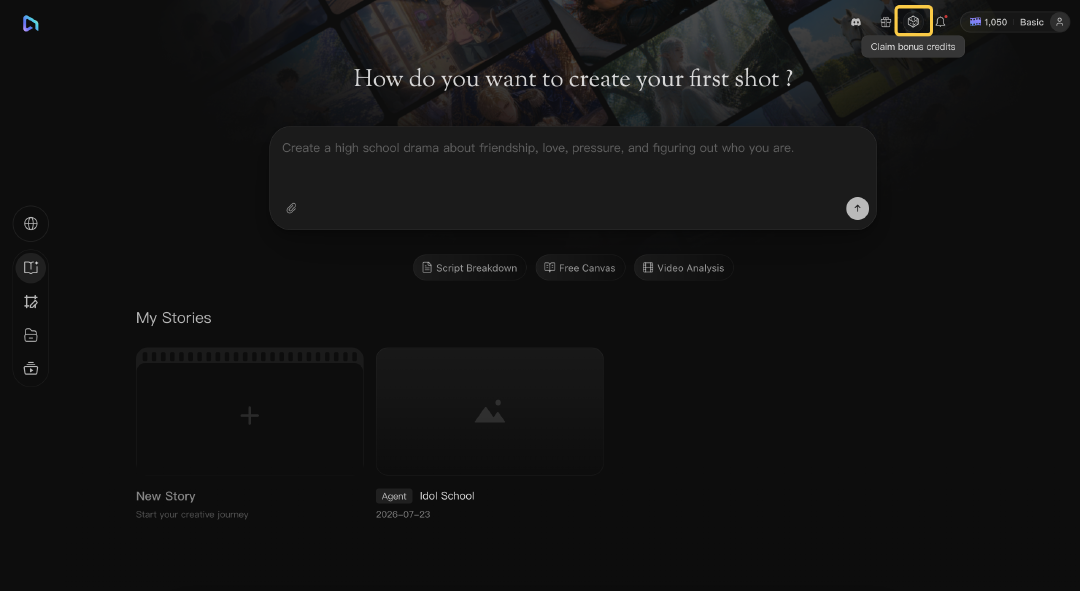
You can pick one up from Arcloop’s X account or Discord community, click Get One on to request one directly, and you may receive a code from us by email.
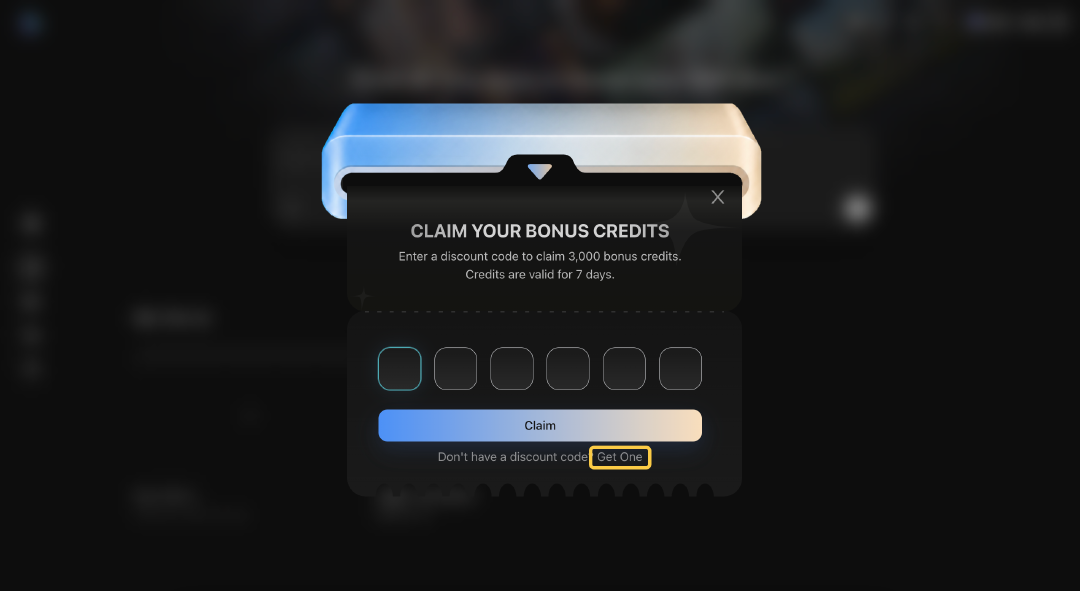
Enter the code and redeem it, and the credits will be added to your account automatically.
2. Start a New Project
In Arcloop, each project is one story workspace.
The outline, characters, episodes, storyboards, and generated clips for that story all stay inside the same project.
From your workspace, start a new project and describe what you want to make in the input box. You do not need to turn it into a polished prompt first. Give the agent enough information to understand the setting, the main character, and what puts the story in motion.
For example:
A 16-year-old independent trainee Kim Yoon-ju earns a spot on the major idol survival show Idol School with her standout vocals and rap skills. As she fights her way through the brutal elimination rounds, she faces not only well-trained contestants backed by major entertainment agencies, but also a devastating truth: the producers have already chosen Jeon Min-ah as their preferred debut candidate—and expect Yoon-ju to serve as nothing more than her supporting act. Refusing to let the company decide her future, Yoon-ju sets out to reclaim the center position and secure her debut through talent alone.
Click Send to create the project.
Arcloop will use your idea as the starting point for the story, characters, and first episode. You will be able to review and change what it creates, so there is no need to pack every detail into the opening message.
3. Set up the Story Brief
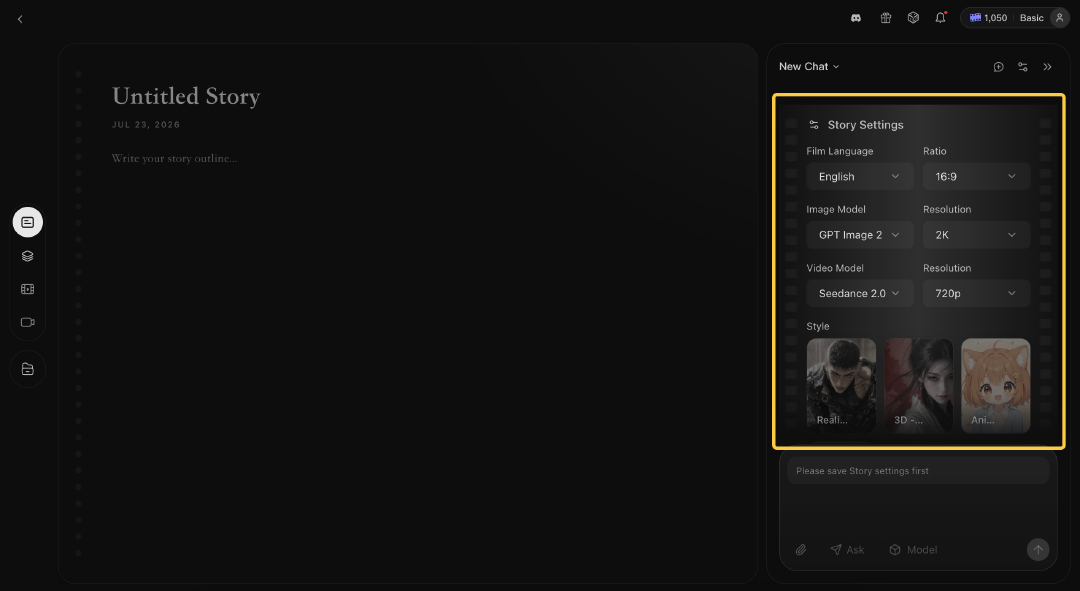
Before Arcloop gets to work, take a moment to set up your Story Brief.
This is where you choose the basic direction for the project, including the language, aspect ratio, visual style, and generation models.
For your first test, keep the setup simple:
- Choose the language you want to use for the story and dialogue, such as Chinese, English, Japanese, or Korean.
- Pick 16:9 for cinematic or YouTube-style videos, or 9:16 for Shorts, Reels, and TikTok.
- Choose either Realistic or Anime and stick with one style for the first run.
- Select the image and video models you want to use for generating the project’s visuals.
These settings will shape how the project looks, how long generation takes, and how many credits each step uses.
Once everything looks right, confirm the brief and let the agent start building the first version of your story.
4. Review and Edit the Story Outline
Once you confirm the Story Brief, Arcloop will begin turning your idea into a structured story outline.
The outline maps out the main conflict, character goals, and overall direction of the project. For the idol survival story, it may build around Yoon-ju entering the competition, discovering that Min-ah has already been chosen, and deciding to fight for the center position.
Treat this first version as a starting point.
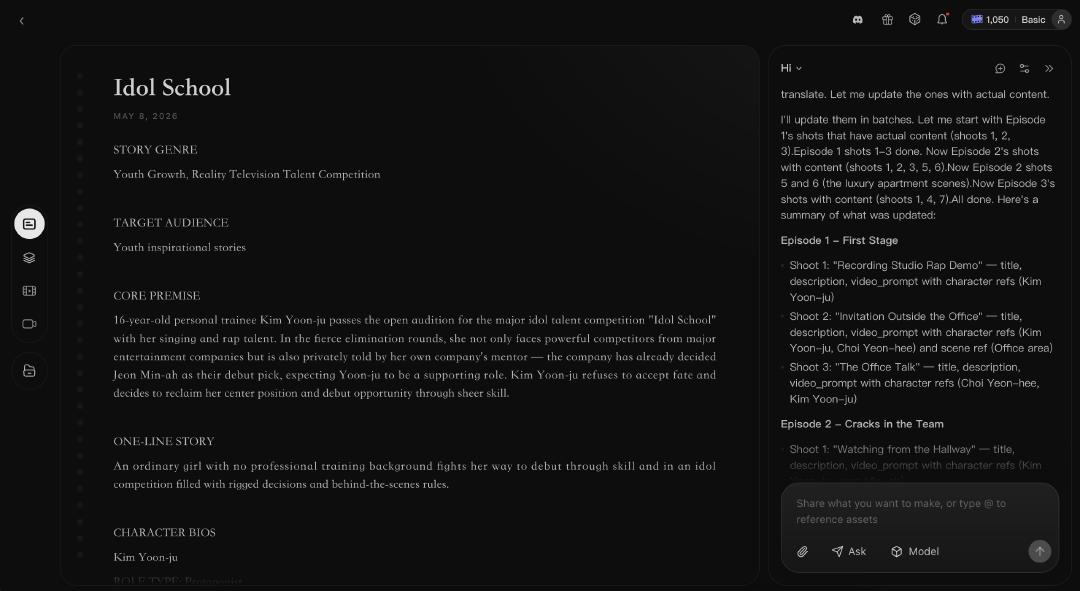
Double-click any section to edit the text manually. Your changes will save automatically, so you can rewrite a line, adjust the pacing, or change the direction without going through a separate save flow.
You can also ask the Arcloop agent to revise a specific part. For example:
Make the opening more dramatic. Yoon-ju should discover that the company is backing Min-ah shortly before an important performance.
You do not have to regenerate the entire outline when only one section feels off. Tweak the part that needs work and keep moving.
5. Review and Edit the Characters
Arcloop will also create character information based on your story.
Open a character to review their appearance, identity, personality, and role in the plot. These details help keep the character recognizable as you build more episodes and shots.
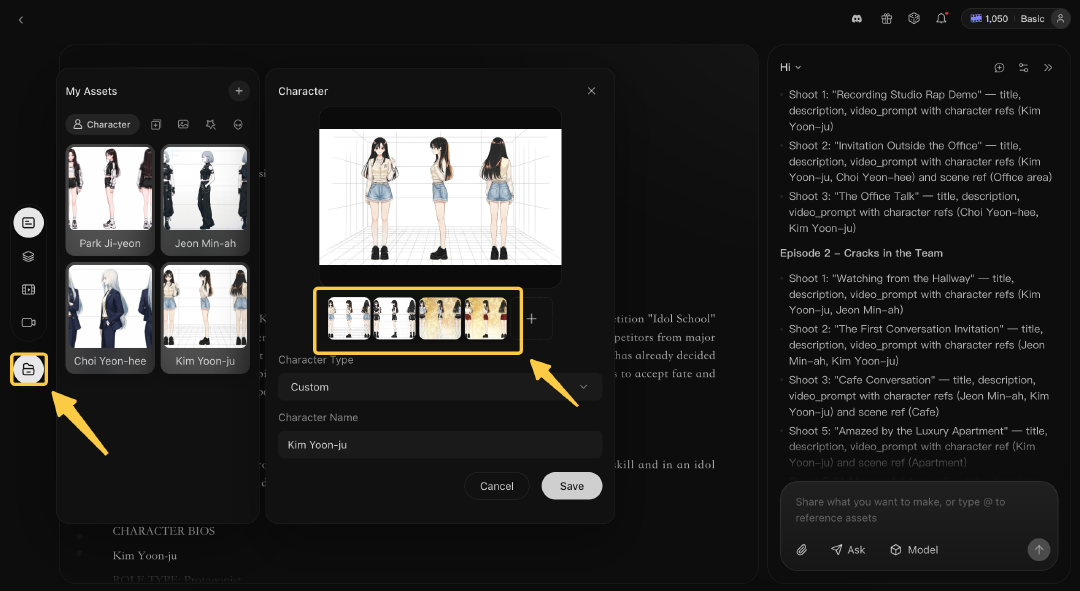
For Yoon-ju, you may want to clarify details such as:
Kim Yoon-ju, 16, an independent trainee known for her strong vocals and sharp rap delivery. She appears calm onstage but is highly competitive and refuses to be treated as someone else’s backup.
You can manually edit anything that feels a bit too unclear or doesn’t quite match the character you’re imagining.
Visual details are especially useful. Add a clear hairstyle, performance outfit, makeup direction, or signature accessory when those elements need to stay consistent across scenes.
When you already have a character design, upload it as a reference. This gives the image and video models a clearer visual anchor than text alone.
A single character can also include multiple reference images. This is useful when the character appears in different contexts or outfits.
For example, Yoon-ju may have separate looks for daily training, interviews, and stage performances. You can upload different reference images for each look and bind them under the same character asset.
This allows you to switch between outfits while keeping the character identity consistent. The agent and generation models will still recognize all of them as Yoon-ju, while using the appropriate visual reference for each scene.
6. Build the Episodes
In Arcloop, an episode is a section of your story that covers one key event or turning point.
Open Episodes to see the list. Click a specific episode (for example, EP1) to enter its shot list and start working on the storyboard.
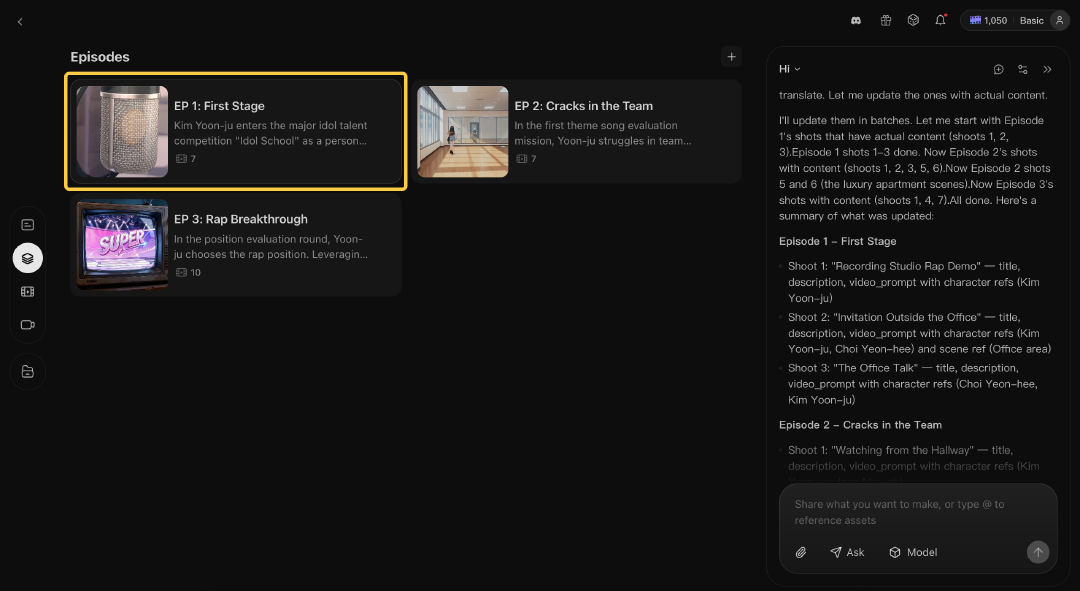
Each episode has a short description of what happens. You can:
-
Edit the description
-
Add or delete episodes
-
Ask the agent to rewrite or expand it
Keep each episode focused, with a clear conflict and change.
For example:
Before the final ranking performance, Yoon-ju is told to support Min-ah onstage. She agrees, but later decides to change her own part.
This gives the episode a clear tension and direction.
7. Turn an Episode into a Storyboard
Once an episode feels ready, open it and move into Storyboard.
The storyboard breaks the episode into individual shots. Each shot can include the character, location, action, dialogue, framing, and visual direction needed for generation.
You can ask the agent to create the storyboard from the episode description, or build and edit the shots manually.
Review the sequence before generating images or video. Make sure each shot adds new information instead of repeating the same moment from a slightly different angle.
For example, the confrontation with Yoon-ju’s mentor could be divided into:
- Yoon-ju enters an empty rehearsal room and finds the mentor waiting.
- The mentor tells her that the company plans to debut Min-ah.
- Yoon-ju stays silent as the mentor asks her to support Min-ah onstage.
- After the mentor leaves, Yoon-ju looks into the mirror and begins changing the choreography.
Double-click a shot to edit its description. You can adjust the action, dialogue, expression, camera angle, or location at any time.
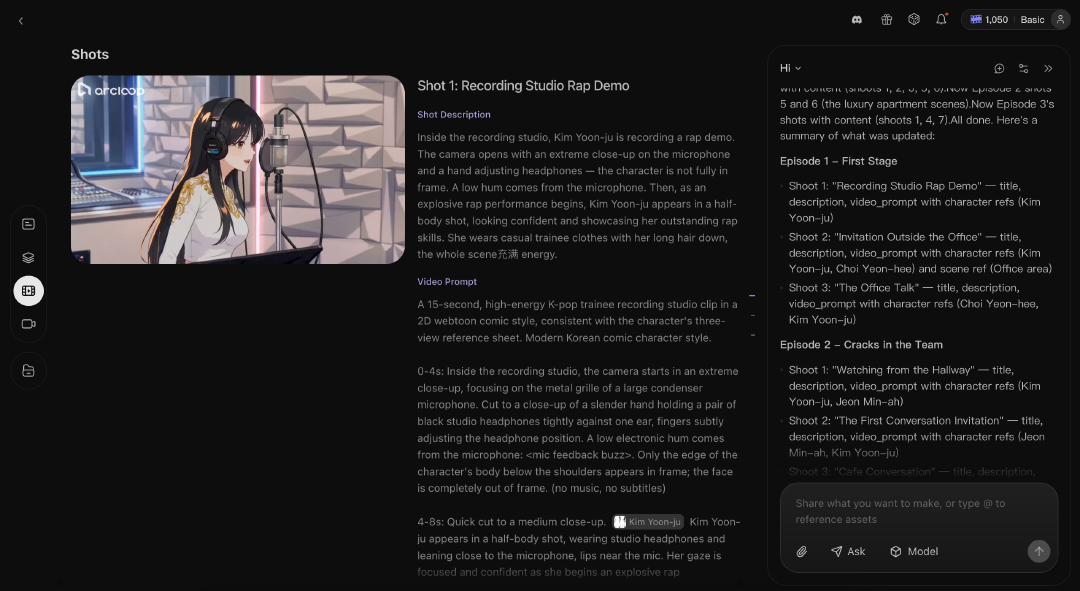
You can also type @ to reference an existing character, location, prop, or other project asset. This helps the agent and generation models understand exactly which element you mean.
For example:
Medium close-up of @Kim Yoon-ju standing in the rehearsal room. She keeps a controlled expression, but her grip tightens around the lyric sheet.
Using an asset reference is more reliable than describing the same character from scratch in every shot.
Generate the Visuals
When the shot descriptions are ready, you can generate videos directly using multi-parameter commands.
Just ask the assistant to generate videos for specific shots. For example:
Generate video for Shot 1.
Generate videos for Shots 1, 2, and 3.
Generate all shot videos for this episode.
This allows you to control exactly which parts of the storyboard are generated, without needing to process everything at once.
Start by generating a few key shots to check character design, outfits, location, and overall visual style. If a result does not match your expectations, adjust the shot description or regenerate that specific shot.
You can iterate shot by shot, refining details as needed, instead of rebuilding the entire sequence.
When writing prompts for video generation, keep the motion focused on one clear action.
For example:
Yoon-ju slowly raises her eyes toward the mirror. The camera pushes in as her expression shifts from shock to determination.
Video generation uses credits. The amount and generation time depend on the model, duration, resolution, and other settings you select.
8. Edit the Sequence
After generating your clips, move into Edit to assemble the episode.
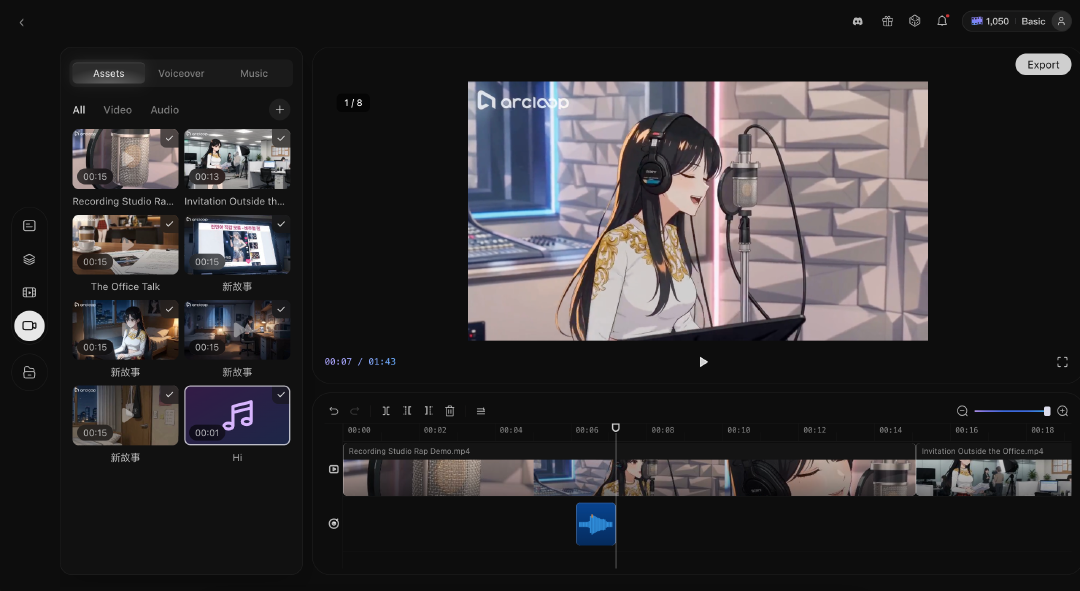
Here, you can arrange the shots, adjust their timing, trim clips, and replace anything that is not working. Start with the basic rhythm of the scene before adding too many finishing touches.
You can return to the storyboard at any time to change or regenerate an individual shot.
Generate a Voiceover
Add dialogue or narration using Generate Voiceover.
Choose a voice that fits the character, then review the pronunciation, emotion, and pacing. A performance scene may need more energy, while a private confrontation usually works better with a quieter delivery.
Add Background Music and Sound
Add background music once the dialogue and visual timing are in place.
Choose music that supports the scene instead of competing with it. For Yoon-ju’s confrontation, a restrained, tense track may work better than a dramatic anthem from the first second.
You can also add simple environmental sounds, such as rehearsal-room ambience, footsteps, crowd noise, or the muffled bass of a performance happening nearby.
Keep the mix clean. Dialogue should remain easy to hear.
9. Export or Publish
Preview the full episode before you finish. When it looks ready, click Export to download the video.
You can also click Publish to share your work on the platform. Selected works could earn bonus credits.
That is enough to take a story from a rough idea to a watchable first episode.