Introduction
You search "seed audio" because a clip you heard sounded like acting — the voice caught on a word, dropped to nothing, came back angry — and every voice tool you have tried produces a clean, even, slightly bored read of the same line. You want to know what Seed Audio 1.0 is, whether it is the reason that clip sounded alive, and what you have to write to get it.
Seed Audio 1.0 is a voice generation model built around performance: it takes the emotional state, the scene, and the pacing as instructions, not as flavor. This guide explains what that means, what a Seed Audio prompt has to contain, when a stable-voice model like ElevenLabs is the better choice, and how to use Seed Audio 1.0 in ArcLoop so the performance belongs to a character instead of to a single clip.
What Seed Audio 1.0 is
Seed Audio 1.0 is one of the voice models available in ArcLoop for character voiceover, alongside ElevenLabs and Doubao. Where most voice models are optimised to say a line clearly in a chosen voice, Seed Audio 1.0 is optimised to perform the line: it reads the description of who is speaking, what they feel, where they are, and how the feeling changes across the sentence, and it shapes pitch, pace, breath, and breaks to match.
In practice that gives you:
- Emotion that moves inside a line — calm at the start, breaking on the last word — instead of one emotion applied evenly.
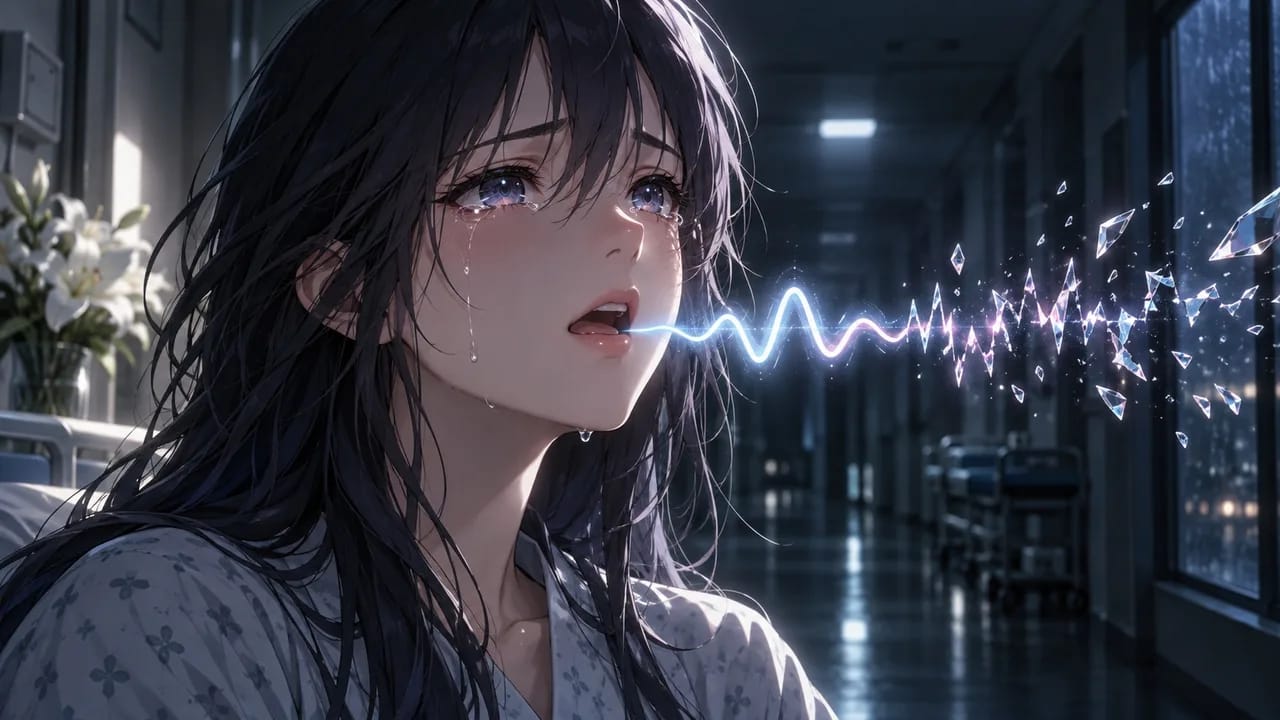
- Scene-aware delivery — a whisper in a corridor, a voice raised over noise, a line said through tears.
- Vocal texture and dialect as part of the character, not a filter added afterwards.
- Whole passages that hold pressure, useful for monologues and confrontations.
What it is not: a fixed voice bank. If what you need is the same recognisable voice repeated with minimal variation across hundreds of lines, that is a different job, covered below.
Seed Audio 1.0 vs ElevenLabs: which one for the job
The split is by task, not by quality. The dubbing comparison goes scene by scene; the short version:
- Seed Audio 1.0 when the scene has to be acted — confrontation, crying, hiding panic, a confession that changes halfway through. The prompt describes the performance; the model delivers it.
- ElevenLabs when the voice has to be stable and reusable across many lines and languages, and you direct at line level with tags like
[whispers]or[angry].
Inside a series, many productions use both: Seed Audio 1.0 for the lead's big scenes, ElevenLabs for supporting characters and bulk dialogue. Pick per character, not per clip, so a character does not change throats between episodes.
Rules for a Seed Audio 1.0 prompt
- Give the state before the line. Who, what they feel, what they are hiding, then the words.
- Describe movement, not a label. "Trying to stay quiet, the anger breaks on the last words" beats "angry."
- Set the scene in one clause. Corridor, phone call, across a counter — it changes how the voice sits.
- Name the pace. Slower than normal, a pause before the last word, rushing then stopping.
- Keep the line short. A caption-length line gives the performance room; a paragraph gets read.
- Keep the voice profile fixed on the asset. Direction changes per line; the voice does not.
How to use Seed Audio 1.0 in ArcLoop, step by step
- Write the character's voice profile on the asset in My Assets: age, pitch, pace, texture, emotional range, one habit. This is the constant; the voice generator guide covers building it.
- Bind the character voice to the asset and choose Seed Audio 1.0 as its engine for the season.
- On each shot card, write the line with its state and scene — the performance direction lives with the shot, not in a separate document.
- Generate the shot's video first, so timing and expression exist to play the voice against.
- Run Generate Voiceover in Edit. Lines land on the timeline against their shots.
- Listen with the picture. If the performance fights the face, adjust the direction on the line — the state, the pace, where it breaks — and regenerate that line only.
- Add BGM last, under the performance, so the mix does not hide the breaks you directed.
Example 1: A confrontation line
Voice: @Mira (profile on asset, Seed Audio 1.0). Scene: kitchen, across the counter from @Daniel, she has already seen the boarding pass. State: controlled on the surface, anger underneath, refusing to give him a reaction. Pace: slower than her normal; a full pause before the last word. Line: "How was Osaka." Note: flat, the period audible, no rise at the end.
Example 2: A line that changes halfway through
Voice: @Kaito (profile on asset, Seed Audio 1.0). Scene: shrine steps at dawn, alone, reading the letter aloud to himself. State: starts steady, almost amused; the second sentence lands and the voice thins out. Pace: even, then a catch before "stay." Line: "You said you'd wait at the gate. You didn't say you'd stay." Note: the last word barely voiced.
Example 3: A whispered line in a corridor
Voice: @Liora (profile on asset, Seed Audio 1.0). Scene: hotel corridor at night, on the phone to @Rowan, staff could hear her. State: frightened, keeping it down, trying to sound like she is in control. Pace: quick, breath audible between phrases. Line: "It's my brother's initials. On a staff card. Don't come up." Note: whisper throughout; the last three words firmer.
The most common ways Seed Audio prompts fail
- Only the line. No state, no scene, so the model performs an average. Add who and what.
- A label instead of movement. "Sad" gives even sadness. Say where it changes.
- A paragraph as the line. Long text gets read, not acted. Cut to the sentence.
- Voice re-picked per clip. Different person each time. Bind it to the asset.
- Reviewed without the face. The best take can be wrong for the shot. Listen on the timeline.
FAQ
Is Seed Audio 1.0 available in ArcLoop? Yes. It is one of the character voice engines; bind it on the character asset and run Generate Voiceover in Edit.
Does it clone a real person's voice? That is not the use here, and it is not what makes it valuable for a series. Build an original voice profile on the asset and direct it.
Which languages? Write the direction in English and the line in the story's language; keep the same profile across locales so the character reads the same everywhere.
When should I switch to ElevenLabs? When a character has hundreds of routine lines and needs to sound identical on every one, or when you need audio-tag control at line level rather than a performed scene.
Next step
Pick the scene where the voice has to do the most work — the confession, the accusation, the line said through tears. Write the state, the scene, and the pace above the line on the shot card, bind Seed Audio 1.0 on the character in ArcLoop, and generate the voiceover on the timeline. Listen once with the picture before you change anything.