Text and frame control
Create from text alone, animate a first frame, or add an ending frame in Canvas. Frame control and general references are separate input workflows.

Turn a written scene, an opening frame or a set of references into video with Wan 3.0. Direct the action, camera and sound in one creative workflow.
Wan 3.0 is Alibaba’s video generation model for scenes that need time to unfold. Start from a written idea, animate an opening image, or bring visual and audio references into a new scene. A continuous camera move, a character’s changing expression or a carefully timed reveal can develop within one generation of up to 30 seconds.
Reference material gives your direction a visual starting point. Use images to establish a character, object or setting, and video to guide movement or camera rhythm. For an approved opening and ending composition, use first- and last-frame control in Canvas. Describe what should happen between the frames rather than repeating everything already visible.
Arcloop connects the standard Wan 3.0 model. Choose 2–30 seconds, 480p / 720p / 1080p and a landscape, portrait or square format in Canvas. Generated audio is optional. Start with the composer on this page, then continue in Canvas for reference roles, output settings and the current credit estimate.
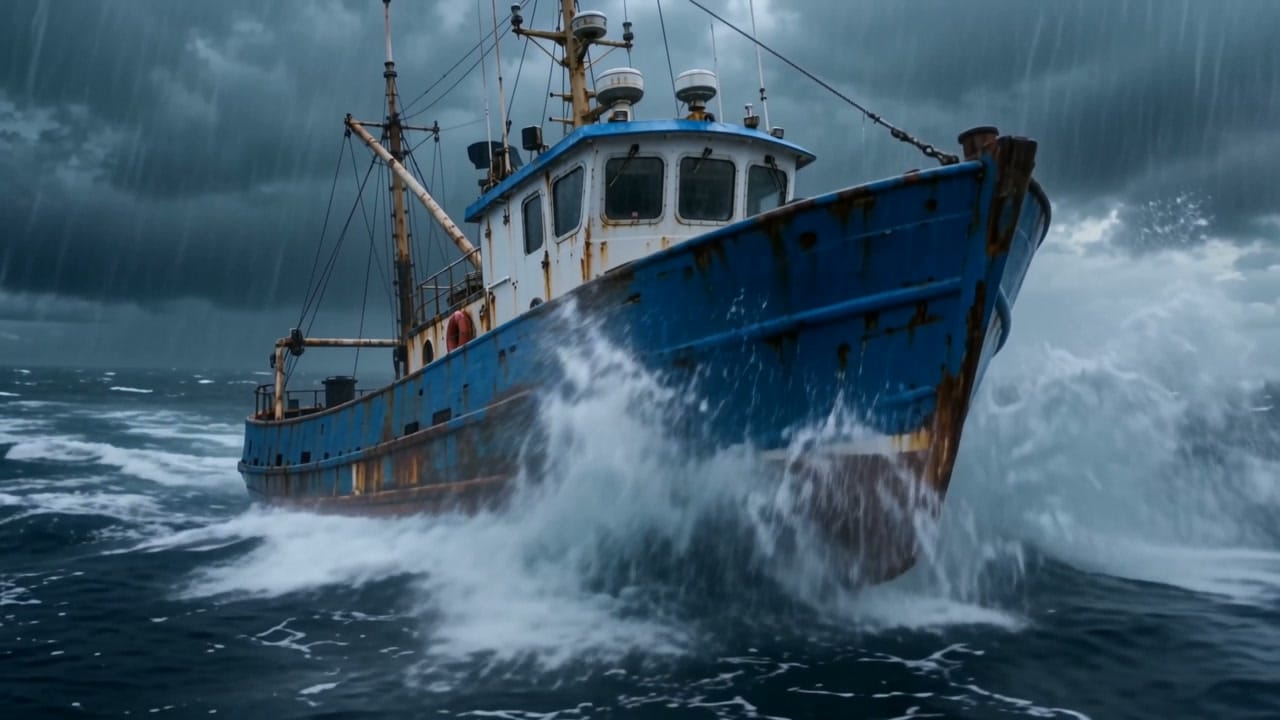
Generated with Wan 3.0 at 720p for 5–6 seconds. View the exact prompt used for each video.
Create from text alone, animate a first frame, or add an ending frame in Canvas. Frame control and general references are separate input workflows.
Canvas supports up to 10 images, 5 videos and 5 audio clips. Reference video and audio each allow 15 seconds in total; reference video plus output must fit within 30 seconds.
Balance visual quality, motion, and native sound with an accessible generation cost.
Start here and continue in Arcloop Canvas to choose the final inputs, settings and credit estimate.
Write the subject, action and camera direction. Add an optional image or video here; organize additional references in Canvas.
Click Generate Now and sign in if needed. Your prompt and selected reference continue into a Story Canvas.
Set the reference roles, aspect ratio, resolution, duration and audio. Check the current credit estimate before submitting.
Submit from Canvas when the setup is ready. The result stays with your story for the next part of the production.
Character encounters, compact dialogue scenes and emotional turning points.
Continuous camera moves, action beats and atmospheric trailer moments.
Controlled product reveals and brand stories, from realism to stylized animation.
Practical guidance adapted from Alibaba’s Wan 3.0 prompt guide and the controls available in Arcloop.
For one shot, name the main action and the camera move. For several beats, give each a time range that fits the selected duration.
Say which image defines the character or location and which video guides motion. Keep first/last-frame control separate from general references.
Name the speaker, put spoken words in quotation marks, then describe ambience, effects and music. Keep dialogue short enough for the clip.
Add only the exclusions you need, such as no subtitles or no background music. Put them in the prompt and avoid repeating or conflicting instructions.
Generation settings: Variable settings
Reference credits: Based on actual usage
Prices are estimates. Check the Canvas quote for your selected resolution, duration and references; actual charges follow final settlement.
Choose an alternative by the inputs and shot you want to create. Settings below describe the current Arcloop integrations.
Balance visual quality, motion and native sound with generation cost, using text, frame control or multimodal references.
Reference-led character performance, deliberate camera movement and short-drama or action scenes.
Larger reference sets, connected story beats and films assembled from multiple shots.
Start from text, use a first frame with an optional last frame, or combine general image, video and audio references in Canvas. First/last-frame control cannot be mixed with general references in the same request.
Canvas supports up to 10 images, 5 videos and 5 audio clips. Reference videos total up to 15 seconds and reference audio totals up to 15 seconds. Reference-video duration plus output duration cannot exceed 30 seconds. The quick composer on this page is a starting input; use Canvas to organize the full set.
Yes. Generated audio is optional and starts enabled here. Describe the dialogue, environmental sound or music you want, then confirm the audio setting in Canvas.
Resolution, output duration and reference-video usage affect the quote. Canvas shows the available settings and credit estimate before submission; actual charges follow final settlement.
Turn a written scene, an opening frame or a set of references into video with Wan 3.0. Direct the action, camera and sound in one creative workflow.