Why your character looks different every episode
You start with a handful of character images you're happy with — enough to scrape by on episode one. By episode two, the character changes appearance on every other shot. Episode three adds a supporting character, and suddenly everyone's blocking and appearance start blurring together. Episode four, the voiceover sounds like a different person. You're digging through last episode's prompts, burning generations, your files are a mess, and reusing anything for monetization gets harder every time.
Build a character asset library that connects each approved image to a named role. Start with the character profile guide, then keep the reference portrait, turnaround views, expression references, and continuity notes together. In Arcloop, My Assets provides the reusable character record; Library holds the media you bind to it.
What belongs in a character asset library
A useful character record makes identity checkable: face shape, hair, colors, outfit silhouette, signature props, and relevant voice notes. Separate those lasting choices from the current shot's action, camera, lighting, and emotion. Referencing the asset supplies context; inspect each generated result for drift.
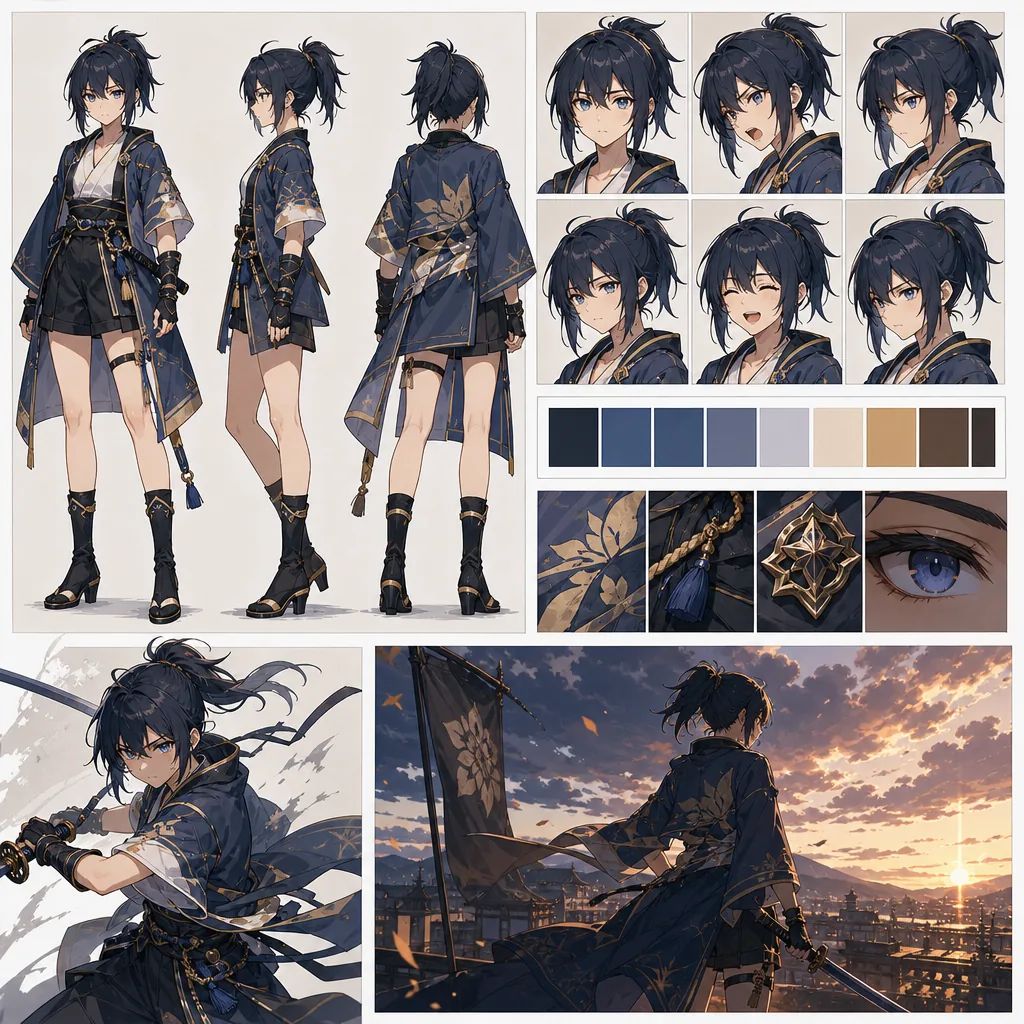
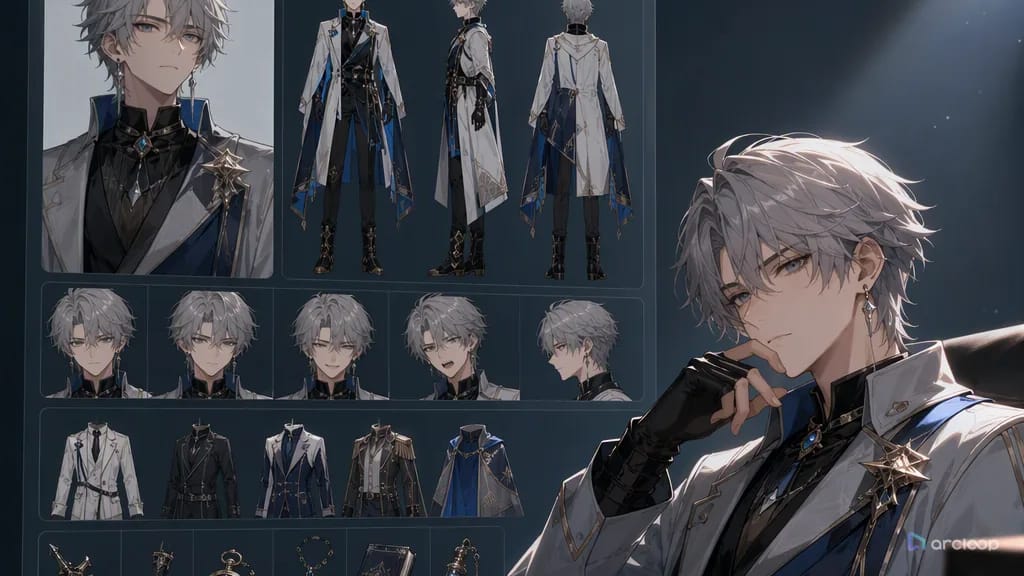
A character profile describes the role and its identifying traits. A turnaround provides front, side, and back views; a three-quarter view adds information for intermediate angles. A reference sheet arranges selected views for review. A character asset in My Assets links the approved media to the role so it can be referenced in shot cards.
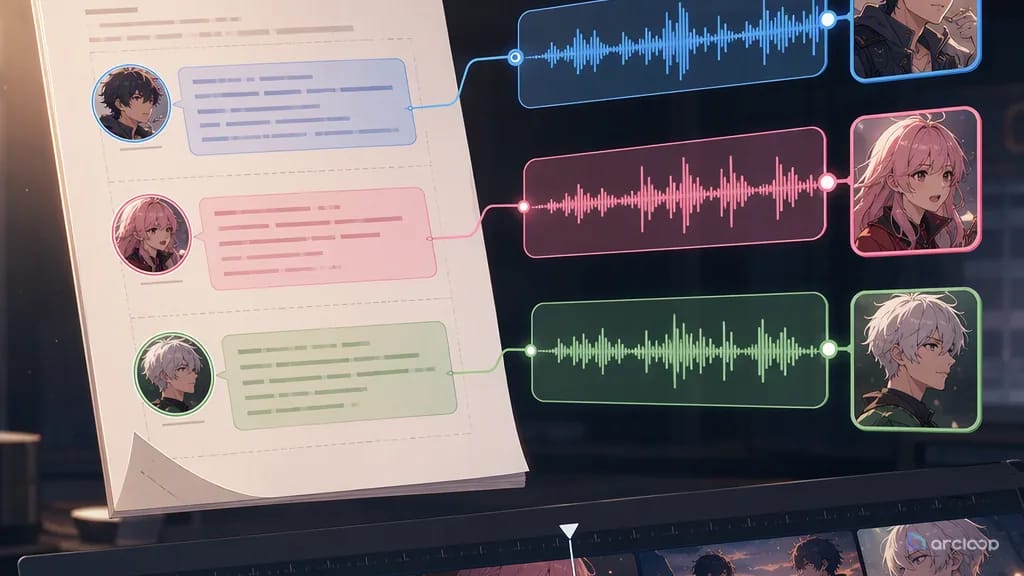
A working character asset library covers three layers. The first is visual identity: reference portrait, turnaround sheet, expression set, outfit, and props. The second is performance identity: line delivery, voice, emotional range, and movement habits. The third is production identity: do-not-change items, flexible items, file naming, shot reference language, and how it gets reused for monetization.
Use the library throughout production. The script identifies which characters appear, shot planning chooses the relevant references, and the edit reveals whether adjacent shots preserve identity. Keep voice choices and costume changes documented alongside the approved character references.
How to build yours: steps inside Arcloop
Step one: assign an asset name and a one-line role. For example: "ZH-001, Lin Zhixia, lead of the contract-revenge storyline, cold on the outside, ruthless underneath." The code keeps files organized; the one-liner keeps the character's role from drifting.
Step two: add the reference portrait. It should be the most standard front-facing version — clean background, even lighting. This isn't necessarily the best-looking image; it's the one that most accurately represents the character.
Step three: add the turnaround views bound to the character asset as Reference images. Front, side, and back all need to be clear, with notes on hair silhouette, outfit structure, prop placement, and footwear.
Step four: add an expression set. AI short drama needs, at minimum: neutral, restrained, shocked, angry, a smirk, and sad. AI anime drama can add exaggerated reactions and comic-style beat pauses.
Step five: add voice notes in the character asset description. Note the apparent age, pace, emotional intensity, pause habits, verbal tics, and anything off-limits. That keeps multi-character voiceover from sounding like a different person every episode, and keeps the delivery from sounding like it's reading off a page.
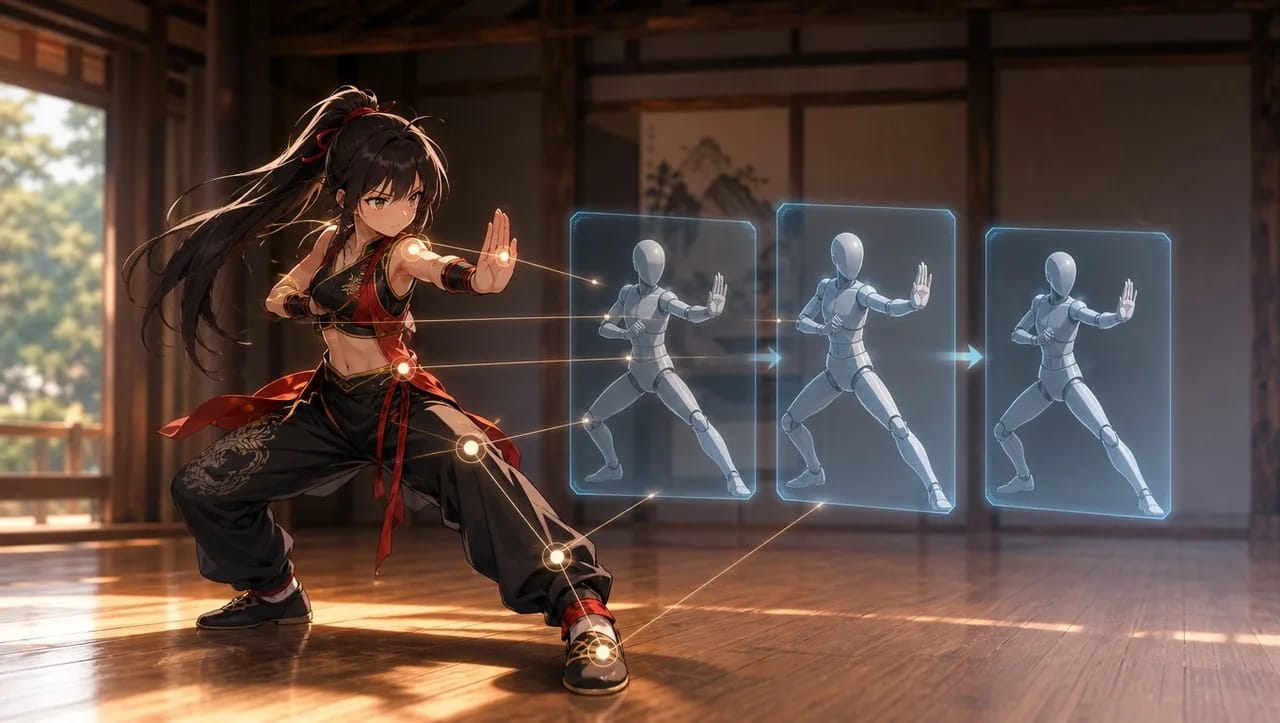
Step six: define blocking and relationships. Whether the lead stands foreground or background under pressure, how far apart they stand from the other lead in a shared frame, whether they make direct eye contact with the antagonist — all of it can become a storyboard rule.
Step seven: write monetization reuse fields. Which images work as cover images, which expressions suit a title card, which outfits carry across episodes, which shots are worth producing at scale. The My Assets isn't a folder of favorites — it's a cost-control asset.
Here is the practical loop inside Arcloop.
Start in My Assets and create a Character asset for your lead. Give it a name — this becomes the @ handle you will use in every Shot. Write a one-line role description in the asset field.
Go to Library → Images and upload your reference portrait. Once it appears in Library, open the asset, click Bind, and set that image as the Main image. Upload your turnaround angles and bind each one as a Reference image. Label them clearly — front, side, back, smirk, neutral — so you can pick the right one per Shot.
Open your Episode and click Generate Shots. Arcloop breaks the episode into shot cards. In each card, type @ followed by your character's name to pull in the asset. Then write only what is new in this Shot: the action, the camera angle, the lighting, the emotion. You do not need to describe the face, hair, or outfit — those are already bound.
Before generating video, generate the image first. Confirm the framing and character appearance match your intent. If a Shot looks off, adjust the description or swap the Reference image in that card, then regenerate that Shot only.
For batch video generation, open the AI Chat Panel and type: Generate videos for Shots 1, 2, and 3. or Generate all shot videos for this episode. When the videos are ready, move to Edit to arrange them on the timeline and replace any clip that needs a retake.
Prompts and spec examples you can copy
Example 1: character asset fields
Open My Assets in your IP Project and create a new Character asset named Lin Zhixia. In the asset description, write her role: lead of the contract-revenge storyline, cold exterior, ruthless core. Upload a clean front-facing portrait to Library, then Bind it as her Main image. Upload a front/side/back turnaround to Library and Bind each as a Reference image. Add a second Reference image for her smirk expression. Once saved, every shot that uses @Lin Zhixia pulls this identity without you re-describing her face, outfit, or silhouette.
Example 2: from My Assets to a shot prompt
Medium shot inside the boardroom. @Lin Zhixia sets a voice recorder on the table and says, 'Anything else you'd like to explain?' She is front-right in frame; the opposing character shows only their left shoulder. Camera holds still — no push, no cut. Cold overhead fluorescent light. Her expression is controlled, almost amused. Use the smirk Reference image bound to @Lin Zhixia. One action only: placing the recorder. Do not change her short black hair, cream suit, silver stud earrings, or thin black belt.
Example 3: reviewing the My Assets for reuse
Open the AI Chat Panel for this episode and type: 'Check whether the assets bound to @Lin Zhixia cover all scenes in this episode.' For each Shot, confirm the correct Reference image is selected — daily look, interview look, or stage look — depending on the scene context. Note any Shot where her outfit or expression reference is missing or mismatched. List the gaps in order of scene appearance, then suggest which existing Reference image to reassign before generating video.
Things that weaken an asset library and how to fix them
Failure one: the My Assets turns into a pile of files. Fix: add fields and codes — every asset needs a stated purpose.
Failure two: only good-looking images, no turnaround sheet. Fix: build the turnaround sheet before generating any more video, or the character will keep changing appearance across shots.
Failure three: do-not-change items are too vague. Don't write "try to stay consistent" — write "face shape, hair silhouette, outfit cut, and key props must not change."
Failure four: voice was never added to the My Assets. A short drama character is built from face and voice together — an unstable voice weakens the character's recall value for monetization.
Failure five: the My Assets doesn't serve monetization. Fix: add fields for cover images, titles, compilations, reusable shots, and cost. The more standardized the My Assets, the cheaper it is to produce at scale.
FAQ
How many images does a character asset library need at minimum?
Begin with a clear portrait and the angles needed by the planned shots. Add expression or costume references when the scene requires them. A fixed image count does not establish quality; check whether the available references cover the actions and viewpoints you intend to generate.
Can a character asset library be built incrementally?
Yes, but a lead character's reference portrait and turnaround sheet should be finished before you generate episode one. Anything added later shouldn't touch the core do-not-change items.
How does a character asset library connect to monetization?
A stable character is easier to carry across cliffhangers, compilation covers, character IP, and reused assets. The My Assets directly affects per-episode cost and long-term production efficiency.