Create or Make Any Edit
Start from a text prompt, or upload an image when you want to change an existing visual.

Create images from a prompt or upload a reference to edit objects, text, backgrounds, layouts, and visual style with clearer control.
Create a new image from text or upload a reference to make a focused edit. Describe the result, generate, and refine it in a few steps.
Start from a text prompt, or upload an image when you want to change an existing visual.
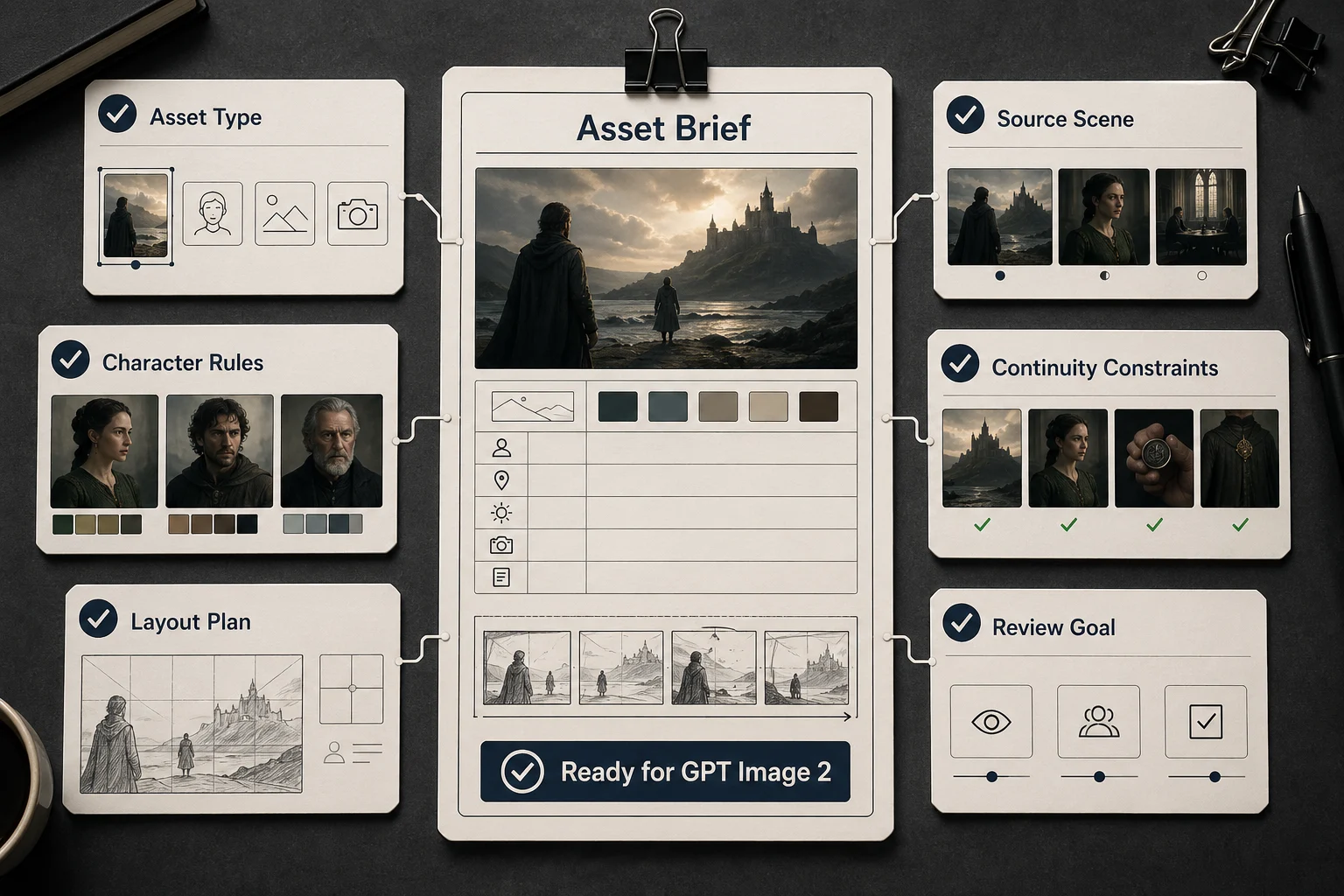
Name the subject, style, composition, text, and important details. For edits, separate what should change from what should stay untouched.
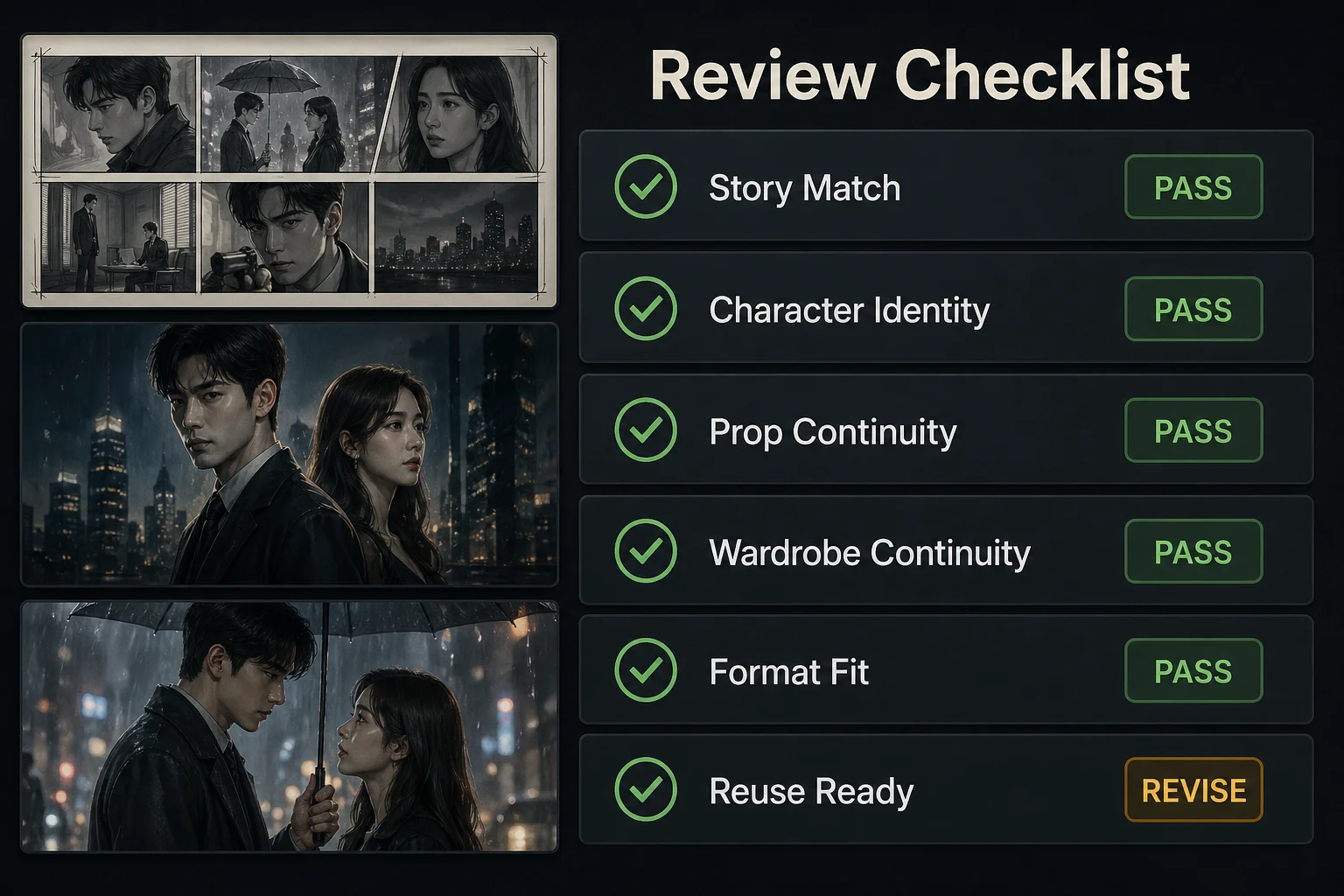
Review the result, adjust one detail at a time, and create another version until the image fits your use case.
Start with a prompt or reference image, then create new visuals, focused edits, character variations, and text-led designs.
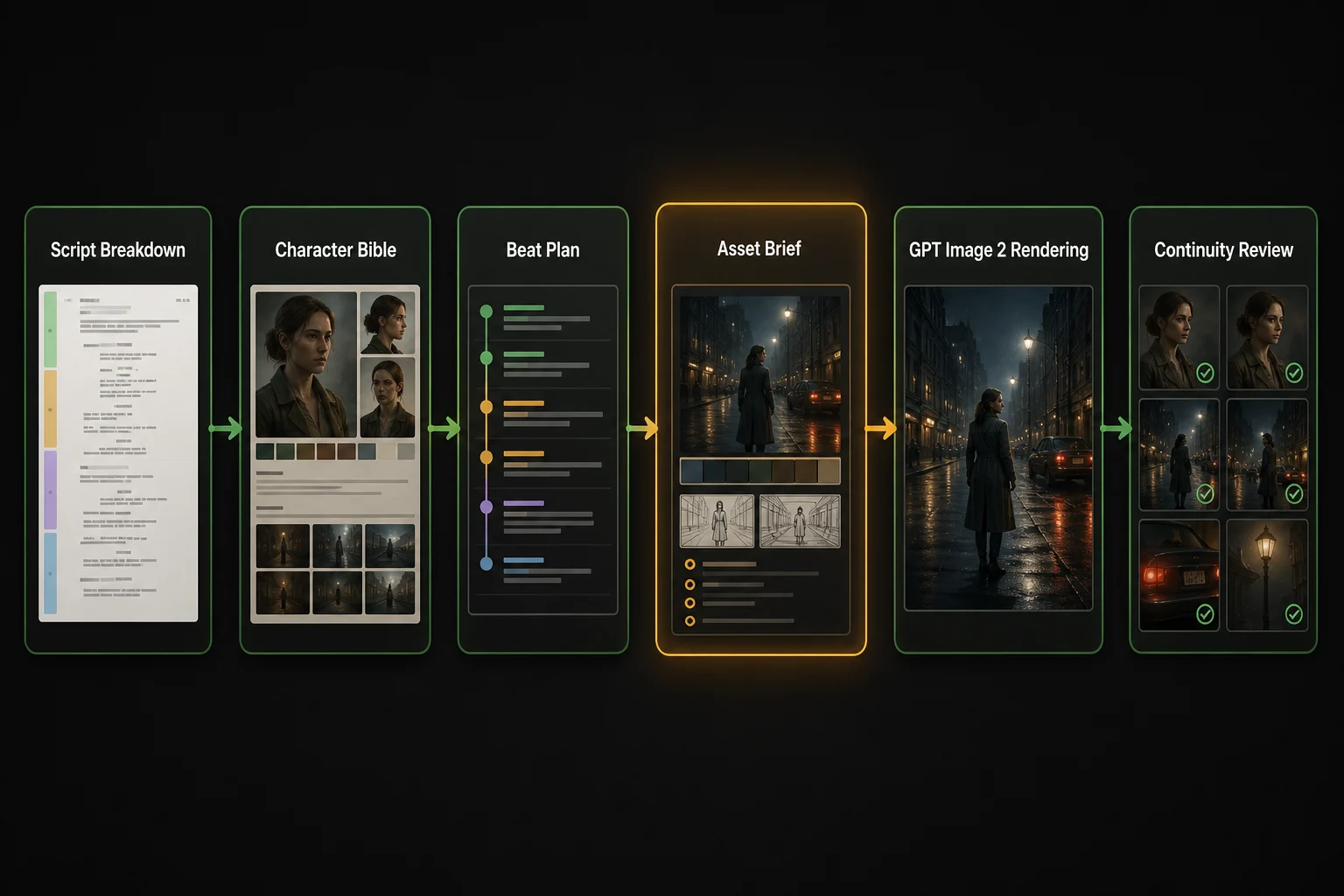
Use GPT Image 2 when you want to create an image from a detailed brief or make an intentional edit to a reference. Use Seedream 5 for broad visual exploration, then use Seedance 2 when an approved image needs motion.
Get the insights you need. Our experts share actionable hacks, break down the hottest topics, and provide essential how-to guides to help you build, optimize, and scale.
Read MoreIt is suited to high-quality image generation and editing from text prompts and image references, including visual concepts, key art, graphic assets, and targeted changes to an existing image.
Yes. Describe the subject, setting, style, composition, lighting, and any important visual details in a text prompt.
Yes, when image reference input is available in the current Arcloop integration. Add the reference and say exactly what should change and what must stay the same.
Start with the intended change, then list the elements to preserve. Include details such as placement, material, lighting, composition, or text requirements when they matter.
Use a clear layout description and reserve space for text. Always review generated copy, spelling, layout, and brand requirements before publishing.
Review the result for visual accuracy, continuity, rights, and your project requirements before treating it as a final production asset.
Start with a detailed prompt or a reference image, then turn the strongest result into a reusable project asset.