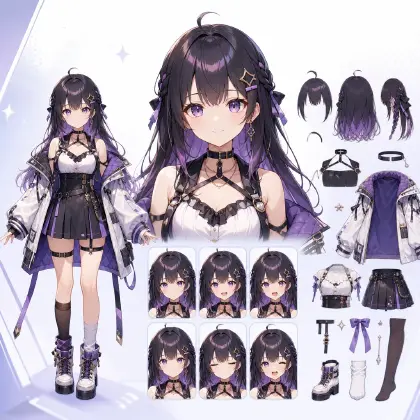
1. What Is Arcloop Canvas?
When you are building a character, testing a visual style, or planning an episode, you need space to compare, adjust, branch, and return to earlier ideas.
Canvas brings that process back into view.
Arcloop Canvas is an open workspace built around creative nodes.
You can add:
- Image Nodes for images, references, prompts, and visual edits
- Video Nodes for text-to-video, first/last-frame, and multi-reference video generation
- Audio Nodes for dialogue, voice ideas, and audio references
Each node works like a small creative station.
You can drag nodes around, arrange ideas visually, zoom in and out, and keep exploring without losing the thread.
Think of Canvas as part moodboard, part storyboard, part generation workspace, and part creative history.
2. What You Can Do With Canvas
Create and Edit Images
Use Image Nodes to generate visuals from text, upload a reference, or continue editing an existing image.
Once the image is generated, you can keep editing it: download, upscale, expand, remove the background, or turn it into the starting frame for a video.
Generate Video Shots
Use Video Nodes to turn images, references, and story assets into short video shots.
Canvas supports text-to-video, first/last-frame, and multi-reference workflows, giving each shot a stronger creative foundation: the characters, locations, props, and visual cues that shape your story world.
For episodes, short dramas, anime scenes, and social campaigns, this helps every generated shot feel less like a standalone result and more like part of a connected production.
Generate Character's Voice
Use Audio Nodes to write dialogue, choose a voice, generate audio, or upload reference audio.
You can bind generated audio to a character, so whenever that character is referenced in a video generation task, the voice stays consistent across scenes.
Reference Your Story Assets
Canvas connects with your IP Projects.
You can bring in assets such as characters, scenes, props, creatures, and visual references from your Asset.
When generating video, use @ mentions to reference specific assets in the prompt.
This gives each shot a clear visual anchor, helping characters, locations, props, and style cues stay consistent across the sequence.
History
Every generated image, video, and audio result is automatically saved in Generation History.
You can search, preview, and bring past results back onto the canvas when they become useful again.
3. How to Try Canvas
Open a world in Arcloop and enter Canvas from the sidebar.
From there, you can add Image, Video, or Audio Nodes, upload references, bring in assets from your library, and start generating.
You can also open Canvas from a generated image result, make small refinements, and keep building from that image on the same canvas.
Saved Canvas projects restore your board, nodes, generated results, viewport position, and zoom level.