Faster visual iteration
Use Flare to explore a direction and compare variations quickly. Choose quality and complexity for the scene rather than adding detail to every request.

Create faster. Refine every detail. Bring your images to life.
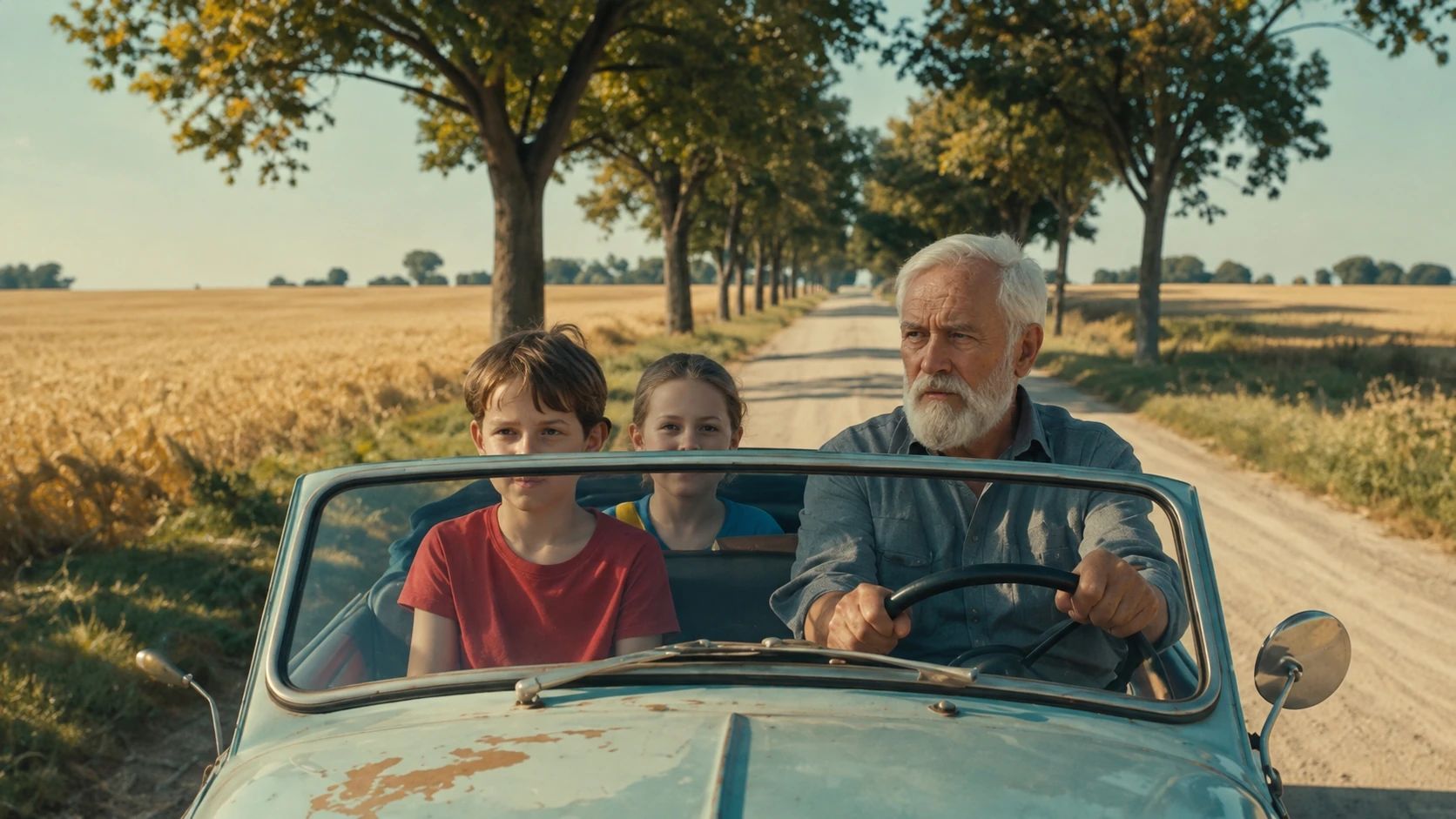
GPT Image 2.6 brings faster iteration to image creation and editing. Flare is designed for quick visual exploration, while Sunburst focuses on detailed compositions and stronger consistency across edits. Develop a scene, refine a product or carry a character into a new setting with more control over the details that matter.
The model family also introduces animated GIF and SVG output in the Image API. Explore looping character reactions, scalable artwork and polished still images, with attention to skin, fabric, lighting and material detail. Available formats and controls depend on the version and options shown in Canvas.
Explore cinematic scenes, character studies and detailed storytelling.


Use Flare to explore a direction and compare variations quickly. Choose quality and complexity for the scene rather than adding detail to every request.
Turn a character, mascot or product idea into a short loop. Describe one clear motion, a steady camera and a starting pose the subject can return to.
Explore vector artwork for websites, apps and print. SVG output is available through the Image API; check the formats offered by the selected Canvas model.
Direct the surface and the light together: woven fabric, brushed metal, glazed ceramic or natural skin. Give reflections, shadows and texture a clear visual reference.
Refine a pose, outfit or setting while preserving defining features. State what should change and which facial, costume and composition details should stay consistent.
Prepare your idea here, then choose settings and generate in Canvas.
Write the subject, action, framing and light in the prompt above. Add an image reference when identity or an existing design matters.
Select Generate Now to carry the draft into Canvas. Choose the available model version, size, quality and output format, then review the credit estimate.
Submit the generation, review the result and make focused changes. Keep approved character and material details explicit during further edits.
Develop believable portraits and story moments, then explore new framing, clothing and environments around the same character.
Create product concepts, editorial images and campaign variations with controlled surfaces, lighting and visual identity.
Plan expressive mascot loops and vector-friendly designs, choosing GIF or SVG where the selected workflow supports it.
Lead with the subject and one visual goal. Add only the composition, light and material details that support it.
Name the change and the details to preserve. Use references for identity instead of repeatedly describing a face from scratch.
For a GIF, describe a simple repeatable action. For SVG, favor clear shapes and a limited composition. Check fine lettering and small details before use.
Scroll to compare all plans
| Model and parameters | Starter 12,000 credits / month | BASIC 30,000 credits / month | Plus 63,000 credits / month | Ultra 120,000 credits / month |
|---|---|---|---|---|
| Image Generation | ||||
GPT Image 2.6 Flare Variable settings Based on actual usage | Based on actual usage | Based on actual usage | Based on actual usage | Based on actual usage |
GPT Image 2.6 Sunburst Variable settings Based on actual usage | Based on actual usage | Based on actual usage | Based on actual usage | Based on actual usage |
Estimates only. Final charges depend on actual usage.
Compare the workflow, output format and creative control your project needs.
Explore faster iteration, detailed edits and the newer GIF and SVG output workflows. Choose Flare or Sunburst for the work at hand.
Continue an established image-generation or editing workflow with Flare and Sunburst, particularly when existing assets already suit your direction.
Compare another reference-led workflow for product imagery, character studies and visual development, with Lite and Pro options.
OpenAI reports 50% faster image generation for Images 2.6. Actual waiting time varies with the model version, quality, complexity, image size and service load.
The official Image API supports animated GIF output and static SVG generation. SVG is a generation output, not an image-edit output. Available formats in Arcloop follow the selected Canvas model.
Start with Flare for fast exploration. Consider Sunburst for detailed compositions and careful editing. Compare results on your own scene rather than assuming one version suits every task.
Use a clear reference and specify the facial features, clothing and other identity details to preserve. Consistency is improved, but demanding changes still need a visual check.
Review the estimate in Canvas after selecting the model and output settings. Image, GIF and SVG requests can have different costs; final charges follow the actual generation.
Start with a detailed prompt or a reference image, then turn the strongest result into a reusable project asset.